Set Alarm-Style iPhone Reminders in iOS 26.2
Set Alarm-Style iPhone Reminders in iOS 26.2Tuesday January 27, 2026 8:41 AM PST by Tim HardwickIn iOS 26.2, released in December 2025, Apple has added a new optional feature that provides the Reminders app with a more urgent noti
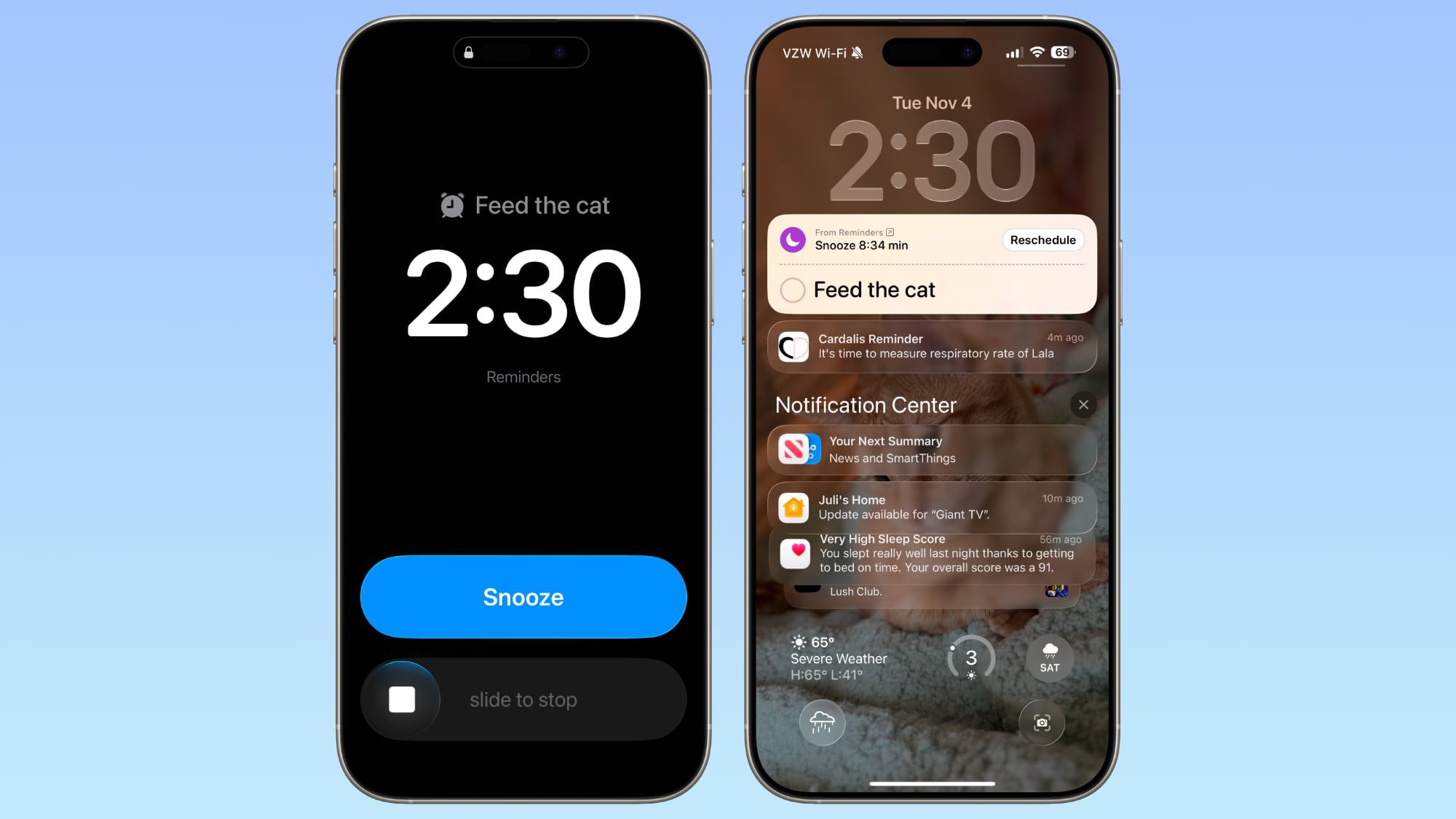
Table of Contents
- 1. Enable Alarms for Reminders
- 2. Create a Reminder With an Alarm
- 3. Show a 'Complete' Button on Reminder Alarms
- 4. Popular Stories
- 5. Apple Responds to iPhone Duo Display Cracking Reports
- 6. Crackgate? iPhone Duo Owners Report Screens Breaking Along the Hinge
- 7. iPhone Duo Fails JerryRigEverything's Dusty Durability Test
- 8. Next Article
Set Alarm-Style iPhone Reminders in iOS 26.2
In iOS 26.2, released in December 2025, Apple has added a new optional feature that provides the Reminders app with a more urgent notification system. When you need to ensure you don't miss an important task, you can now set an alarm that works just like your morning wake-up call, with a snooze button and slide-to-stop slider.
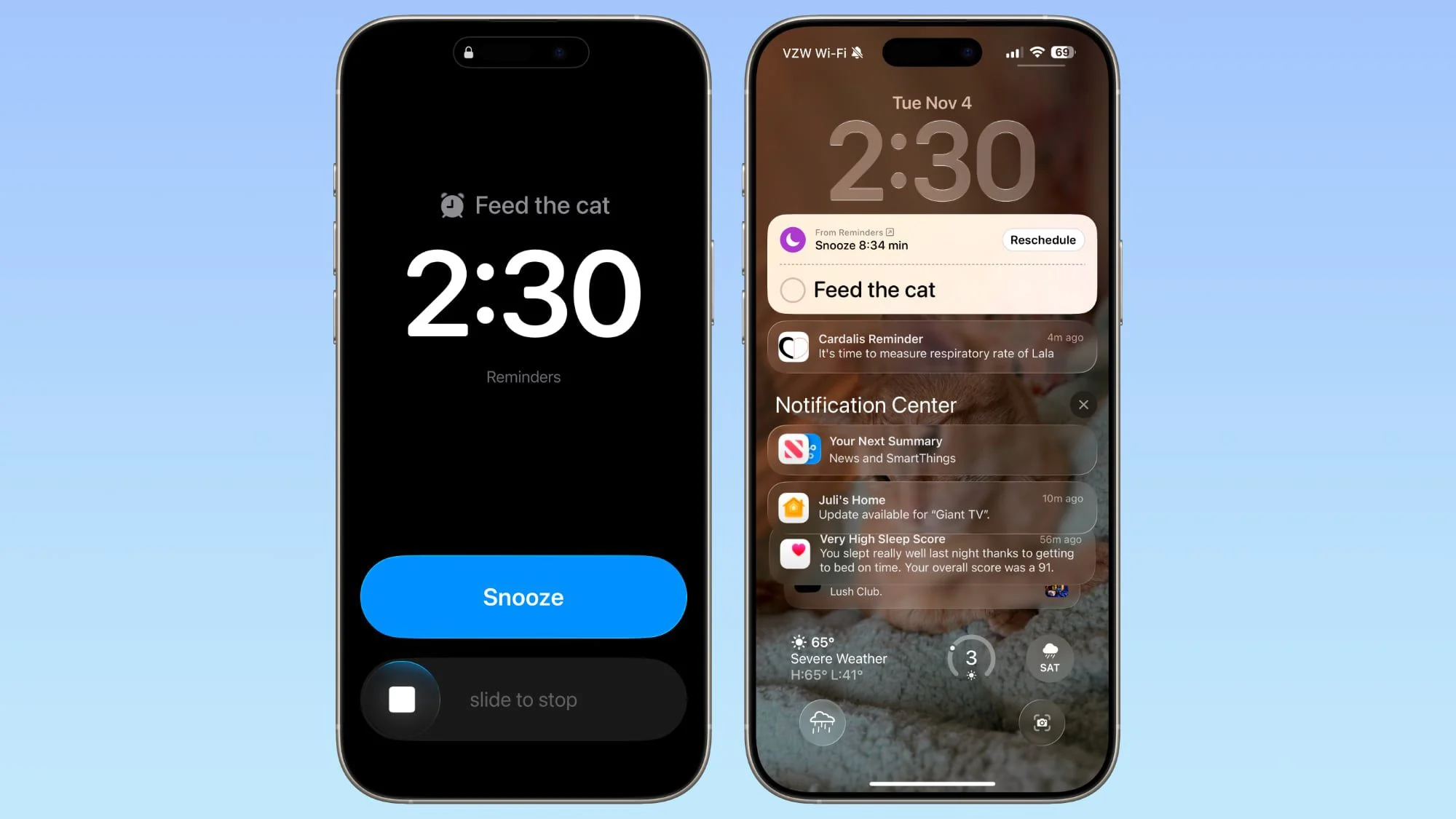
The feature distinguishes Reminder alarms from standard Clock alarms by applying a distinctive blue color to the snooze button, allowing you to easily tell which type of alarm is going off. You can also choose to see a Complete button instead of a Snooze button on the alarm screen that marks the reminder as completed.
Enable Alarms for Reminders
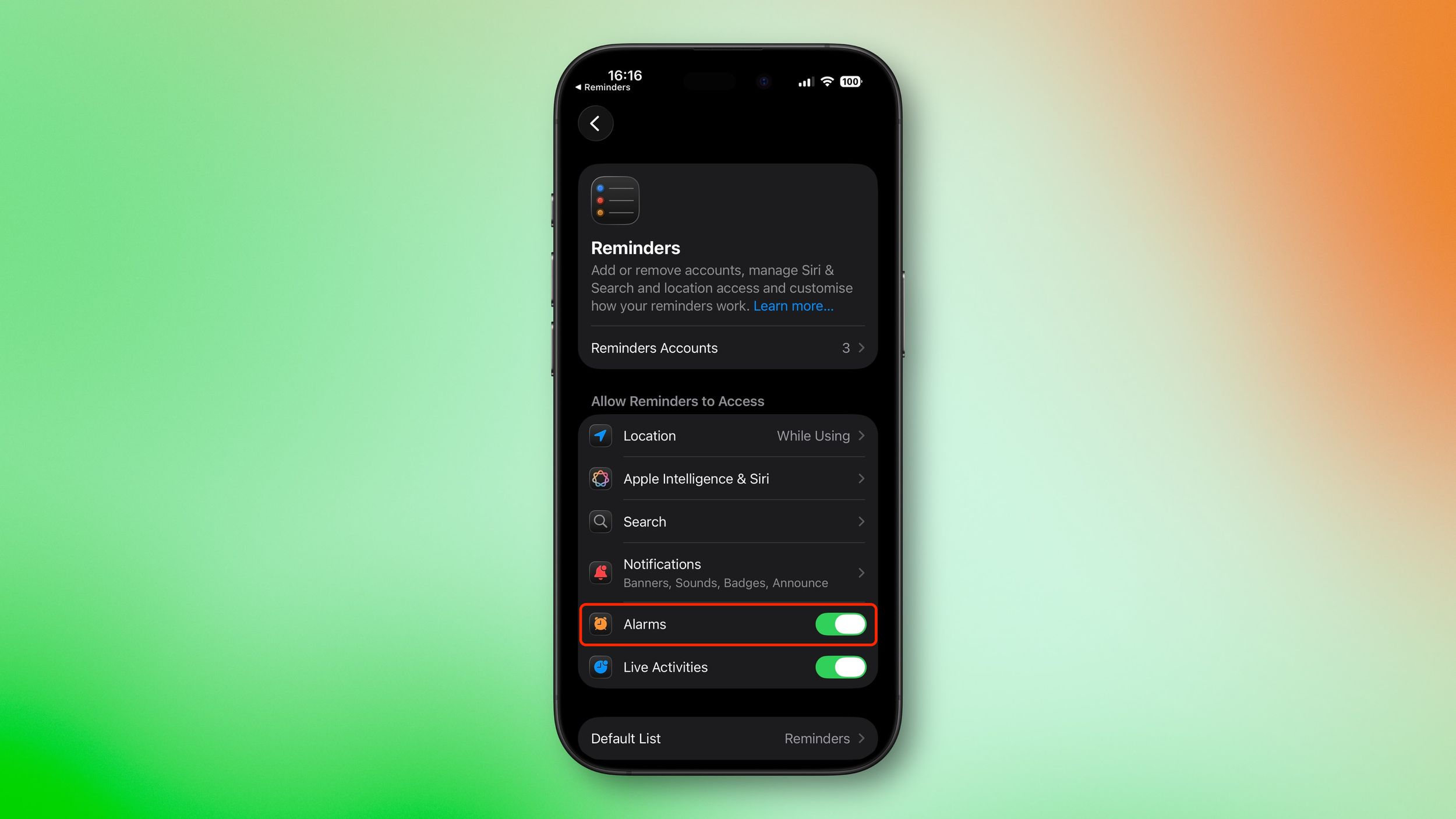
Before you can use alarms with reminders, you need to grant the Reminders app permission to access iPhone alarms.
- Open the Settings app on your iPhone.
- Swipe to the bottom and tap Apps ➝ Reminders.
- In the "Allow Reminders to Access" section, toggle on the switch next to Alarms.
Create a Reminder With an Alarm
Once you've enabled alarm access, creating an urgent reminder is straightforward.
- Open the Reminders app.
- Create a new reminder or tap an existing one.
- Tap the info button (ⓘ) next to the reminder.
- Turn on Time and select when you want to be alerted.
- Turn on the Urgent switch to enable an alarm.
When the designated time arrives, your iPhone will sound an alarm. You'll see a snooze option and a slide-to-stop control on your screen. If you choose to stop or snooze the alarm, a notification appears with options to complete the reminder or reschedule it. Note that tapping to complete the reminder opens the Reminders app, where you'll need to tap again to mark it as done. Alarms will activate even when a Focus is on or your device is muted.
Show a 'Complete' Button on Reminder Alarms
You can streamline your alarm-reminder by replacing the snooze option with a Complete button that immediately marks the reminder as done.
- Open the Settings app on your iPhone.
- Swipe to the bottom and tap Apps ➝ Reminders.
- In the "Urgent Reminders" section, toggle on the switch next to Complete for Alarm.
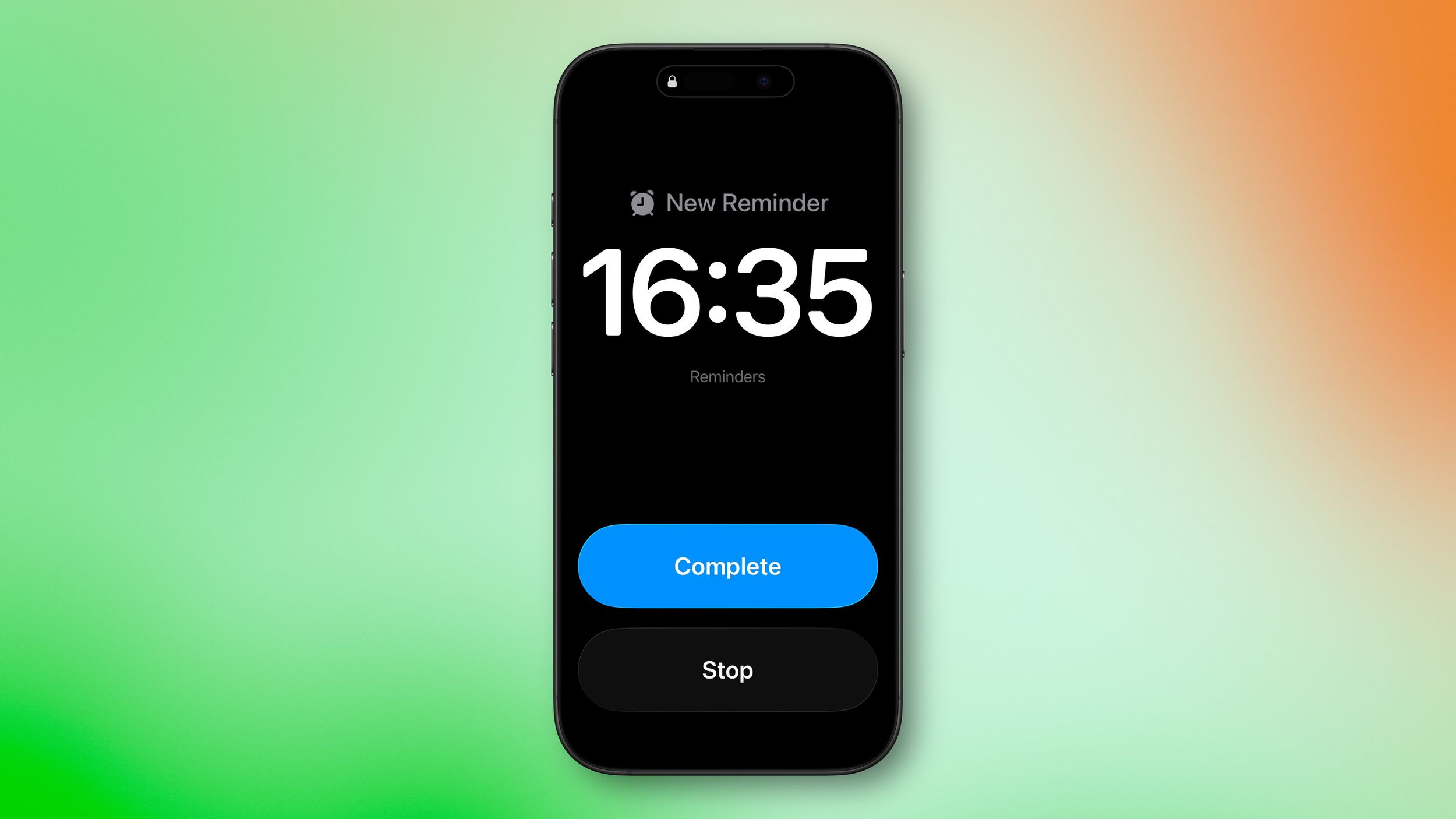
With this setting enabled, you can instantly complete reminders without opening the app, which is handy for quick tasks you finish on the spot.
Popular Stories

Apple Responds to iPhone Duo Display Cracking Reports

Crackgate? iPhone Duo Owners Report Screens Breaking Along the Hinge