Auto-Populate iPhone Home Screen With Your Most Used Apps
Auto-Populate iPhone Home Screen With Your Most Used AppsThursday July 25, 2024 2:51 AM PDT by Tim HardwickDo you find yourself frequently scrolling through multiple Home Screen pages on your iPhone to get to the apps you access m

Table of Contents
Auto-Populate iPhone Home Screen With Your Most Used Apps
Do you find yourself frequently scrolling through multiple Home Screen pages on your iPhone to get to the apps you access most often? If so, chances are you've already filled up the first page with some of your favorite apps. But what if you could automatically make all of your most-used apps appear on page one? With the Siri Suggestions widget, you can.

The Siri Suggestions widget intelligently recommends apps based on your usage patterns. By populating your Home Screen with multiple instances of this widget, you can ensure that the apps you need most are always just a tap away. Read on to learn how it's done.
- With your iPhone unlocked, swipe to a Home Screen page with at least two free rows available.
- Press and hold the empty space on the Home Screen until the apps start to jiggle.
- Tap the "+" button in the top-left corner of the screen to access the widget gallery.
- Search for "Siri Suggestions" in the widget gallery or scroll through the list to find it.
- Tap the Siri Suggestions widget option, then choose the first option showing two rows of apps by tapping Add Widget.

- Drag the widget to a fresh new page containing no other apps.
- Add another instance of the Siri Suggestions widget by tapping the "+" button in the top-left corner of the screen again, then selecting it in the widget gallery, just like you did for the first one.
- Add a third Siri Suggestions widget in the same way.

- Next, tap the row of dots representing your Home Screen pages.
- In the Home Screen grid that appears, touch and drag the page of widgets you just made and move it so that it's the first Home Screen page (the one you see when you unlock your iPhone). The others will move to make way in response to your drag action.
- Tap Done in the top-right corner of the screen when you're happy with the new arrangement, then tap Done again to exit jiggle mode.
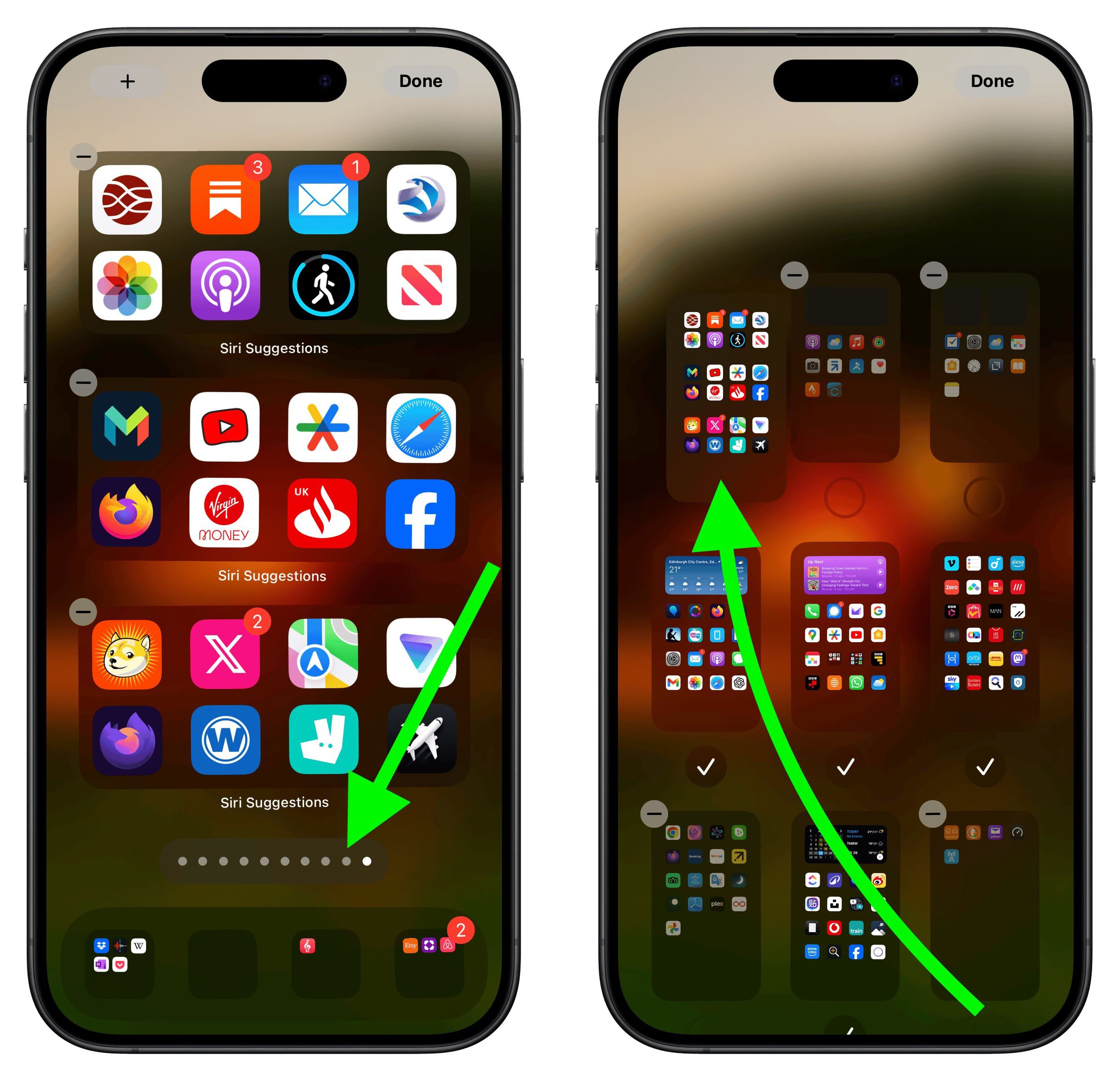
Don't worry if the widgets first show the same suggested apps as each other – this will correct itself when you swipe away from the page and return to it. That's all there is to it. By following the above steps, you will have quick access to your most-used apps, even if your habits change, ensuring your Home Screen is both dynamic and tailored to your needs.
Popular Stories

Crackgate? iPhone Duo Owners Report Screens Breaking Along the Hinge

Apple Music Has a Hidden iPod You Can Play With