
Remotely Control Your iPhone Camera – No Apple Watch Needed
Remotely Control Your iPhone Camera – No Apple Watch NeededTuesday May 13, 2025 8:59 AM PDT by Tim HardwickRemotely controlling the shutter on your iPhone's camera lets you include yourself in the photo while avoiding the limitati

Table of Contents
- 1. Use Voice Control to Take a Photo
- 2. Control Your iPhone's Camera With Apple Watch
- 3. Popular Stories
- 4. Crackgate? iPhone Duo Owners Report Screens Breaking Along the Hinge
- 5. Apple Music Has a Hidden iPod You Can Play With
- 6. iPhone Duo Fails JerryRigEverything's Dusty Durability Test
- 7. Next Article
Remotely Control Your iPhone Camera – No Apple Watch Needed
Remotely controlling the shutter on your iPhone's camera lets you include yourself in the photo while avoiding the limitations of a selfie. For example, it allows you to take a picture of a wider scene with you included in the frame, which is ideal for landscape shots or group photos. If your iPhone is on a tripod, taking the shot remotely also reduces the risk of camera shake. Here's how to do it – and you don't need an Apple Watch.

There are more ways than one to take a picture on your iPhone remotely. If you have an Apple Watch, you can open the Camera Remote app that comes included in watchOS (see the second set of steps below). If you don't have an Apple Watch, here's how to use Voice Control.
Use Voice Control to Take a Photo
If you don't have an Apple Watch, don't worry. You can also use Voice Control to remotely control the camera on your iPhone. That's because you can trigger the camera shutter with the volume buttons, which can also be controlled with your voice. Here's how it works.
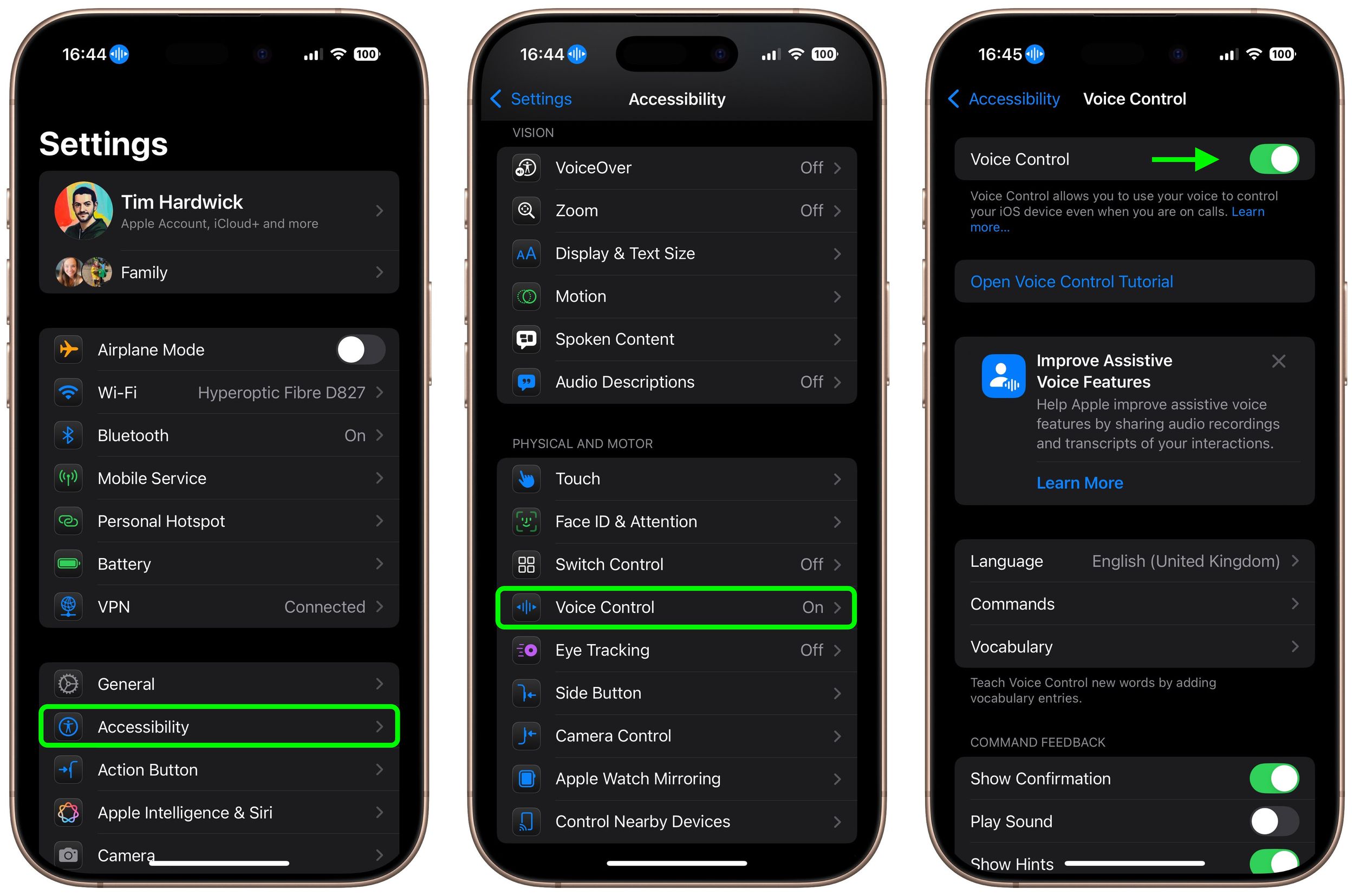
- Launch the Settings app and tap Accessibility.
- Tap Voice Control.
- Turn on the switch next to Voice Control so it's in the green ON position. (You should see a Voice Control active symbol and a little orange dot icon at the top of the screen indicating that Voice Control is using the microphone.)
- Next, launch the Camera app and line up your shot.
- When you're ready, say "Turn up the volume," to activate the camera's shutter and take the picture.
- When you're finished, you can disable Voice Control by toggling the switch again in Settings.
Control Your iPhone's Camera With Apple Watch
- Launch the Camera Remote app on your wrist.
- Position your iPhone to frame the shot you want to take.
- Tap the Shutter button on your Apple Watch screen.
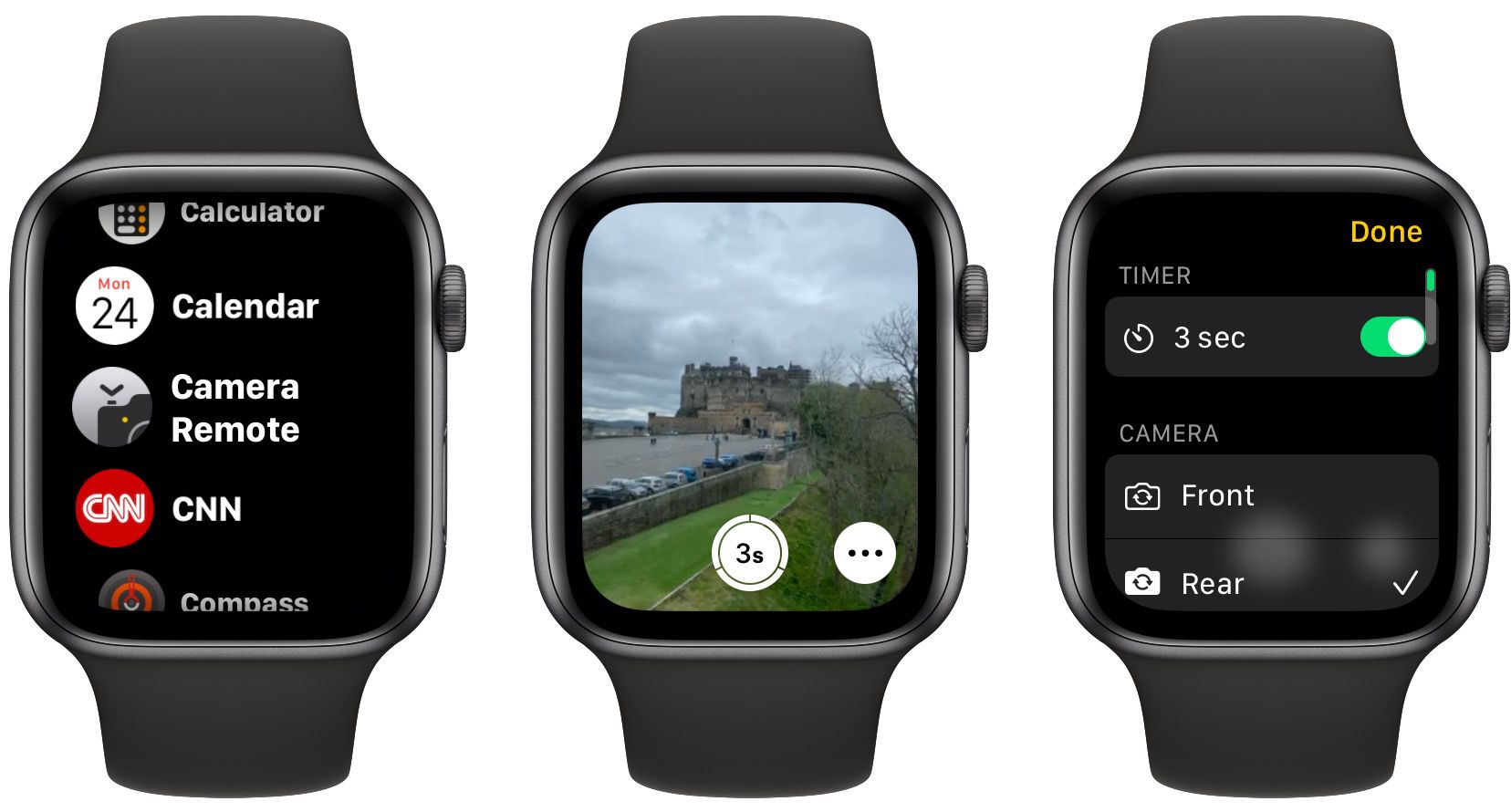
By default, the shot is taken after three seconds to give you time to move into position, but you can disable the time and control other settings including flash, and Live Photo by tapping the ellipsis (three dots) button. The menu that this calls up also lets you switch between the front and rear iPhone camera.
Final tip: If you're familiar with the Shortcuts app, you can find a shortcut in the Gallery called "Say Cheese" that lets you use Siri to control your iPhone's camera remotely. Once you've added it to your active shortcuts and given it permission to access your camera and microphone, you'll be able to take photos remotely by saying "Hey Siri, say cheese."
Popular Stories

Crackgate? iPhone Duo Owners Report Screens Breaking Along the Hinge

Apple Music Has a Hidden iPod You Can Play With

