
iPhone 16: How to Disable the Camera Control Button
iPhone 16: How to Disable the Camera Control ButtonFriday September 20, 2024 3:13 AM PDT by Tim HardwickApple's latest iPhone 16 models include a new Camera Control button (located on the lower right-hand side when holding the pho
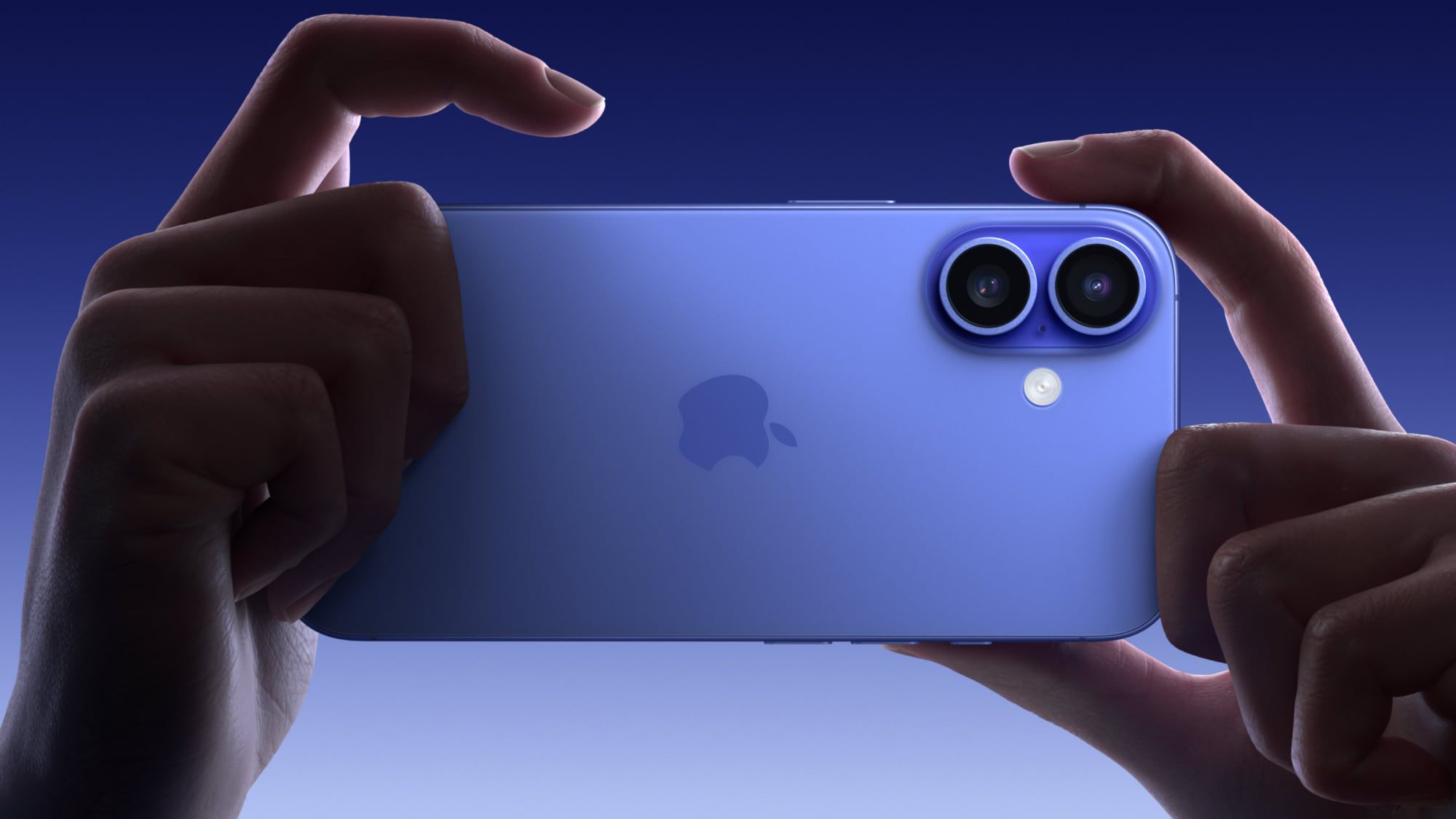
Table of Contents
iPhone 16: How to Disable the Camera Control Button
Apple's latest iPhone 16 models include a new Camera Control button (located on the lower right-hand side when holding the phone in portrait mode). The new button aims to make it easier to adjust photography settings when shooting with the iPhone in both portrait and landscape orientation.
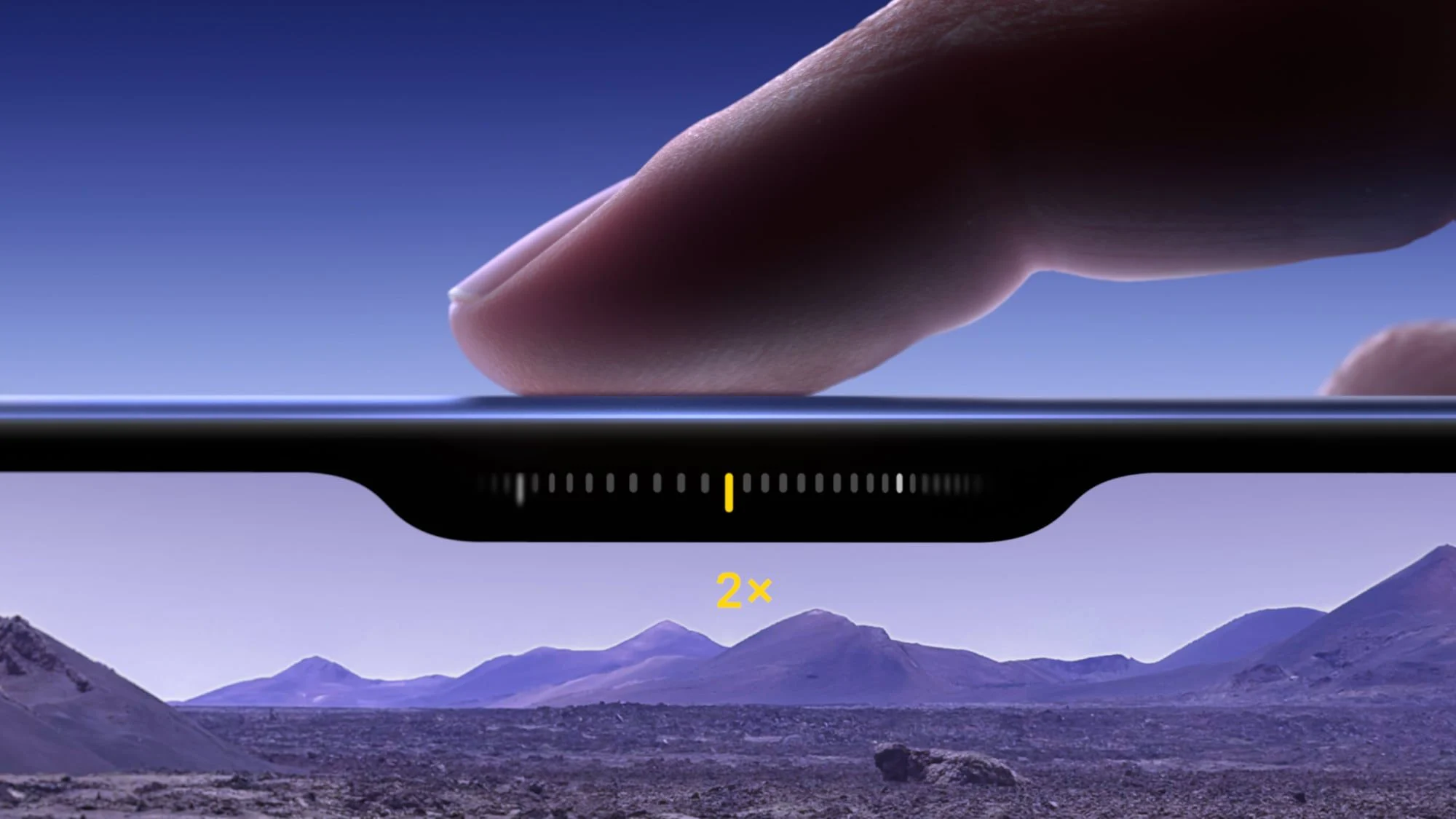
When you press down on the Camera Control button it brings up the Camera app, which is where its additional functionality lays hidden, but it can be easily invoked with light press gestures.
A light press on the Camera Control button engages a haptic click to bring up settings like zoom and exposure, which you can adjust with a swipe, while a double light press lets you switch between all these settings, selecting individual options with a further light press.
If you find yourself accidentally opening the Camera app by unintentionally pressing the Camera Control button, or you just don't find yourself using it for whatever reason, you can turn off the button's functionality completely. The following steps show you how it's done.
- Open Settings on your iPhone.
- Tap Accessibility.
- Under "Physical & Motor," tap Camera Control.
- Toggle off the switch next to Camera Control.
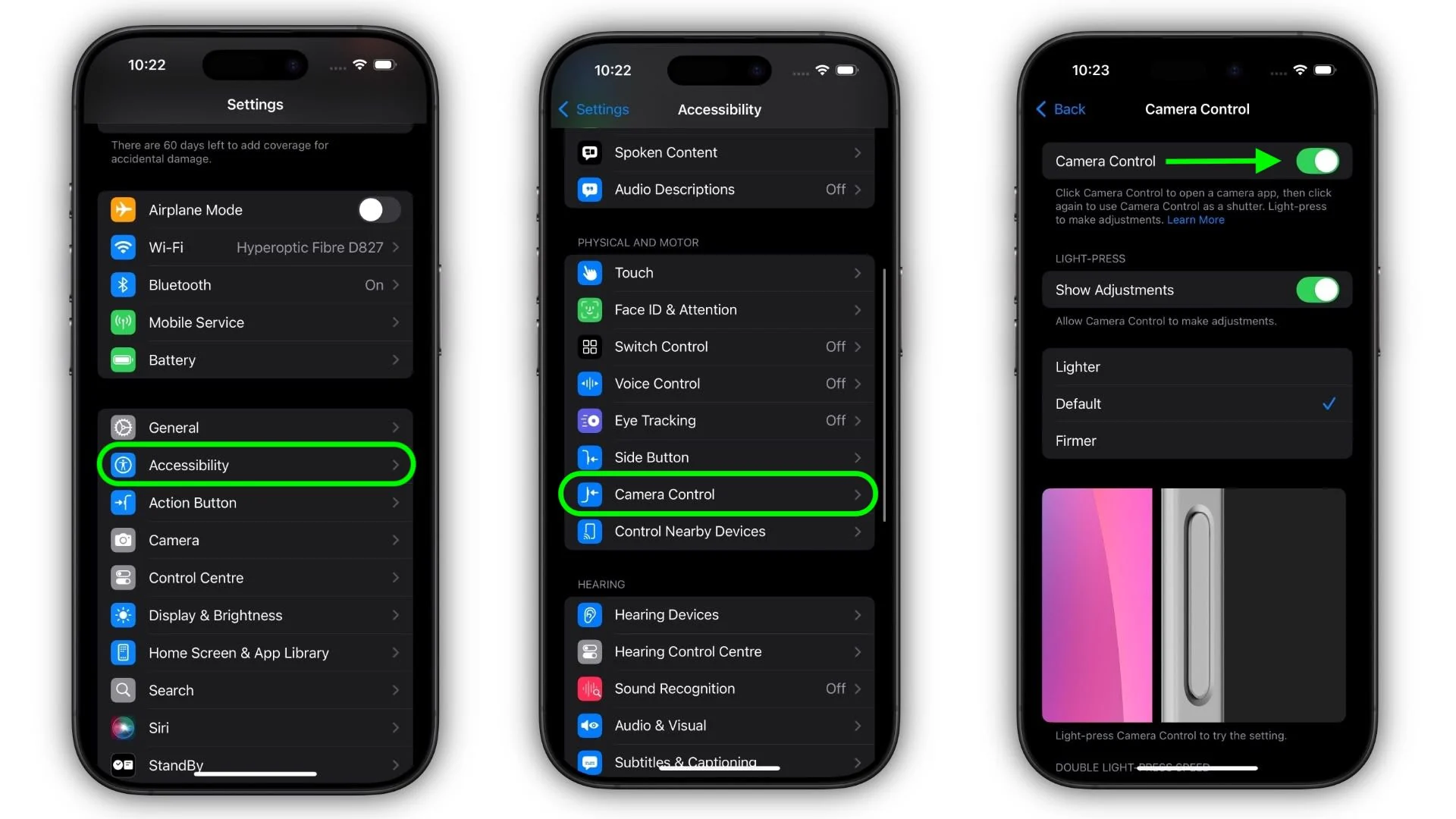
Having done that, the Camera Control button will no longer engage the Camera app and its corresponding functionality, so you no longer have to worry about pressing it – it won't do anything.
To reinstate Camera Control features, simply toggle back on the "Camera Control" switch in Settings ➝ Accessibility ➝ Camera Control.
If you don't quite get on with Camera Control, don't give up on it completely. It can take a while to get used to. It's also worth noting that the button will soon get additional features: In a software update coming later this year, Camera Control will introduce a two-stage shutter that lets you automatically lock focus and exposure with a light press — so you can re-frame your shot without losing focus on your subject.
Popular Stories

Crackgate? iPhone Duo Owners Report Screens Breaking Along the Hinge

Apple Music Has a Hidden iPod You Can Play With

