
How to use Chromecast to stream audio
If you're like us, you'll have your TV hooked up to a beefy home cinema or stereo audio system. If so, it makes sense to take advantage of another of the
- How to use Chromecast: Everything you need to know
- The 20 Best Chromecast apps of 2016
- How to Improve Chromecast Performance
- How to use Chromecast to mirror your screen
- How to use Chromecast to play games
- How to use Chromecast to stream audio
- How To Turn Off Your Chromecast
- How to Stream VLC Player to Chromecast
- How to use Chromecast without Wi-Fi
- How to reset your Chromecast
- Chromecast tips and tricks
If you’re like us, you’ll have your TV hooked up to a beefy home cinema or stereo audio system. If so, it makes sense to take advantage of another of the Chromecast’s hidden features: audio streaming via tabs.
Normally, when you stream a tab to your Chromecast, the picture is prioritised and the audio quality takes a back seat. To improve the quality, you can use the “Optimize for audio” option.
This comes into its own when streaming from embedded players embedded in web pages that, for some reason, don’t have in-built Chromecast support.
Getting to this option is straightforward. Just follow the steps below:
-
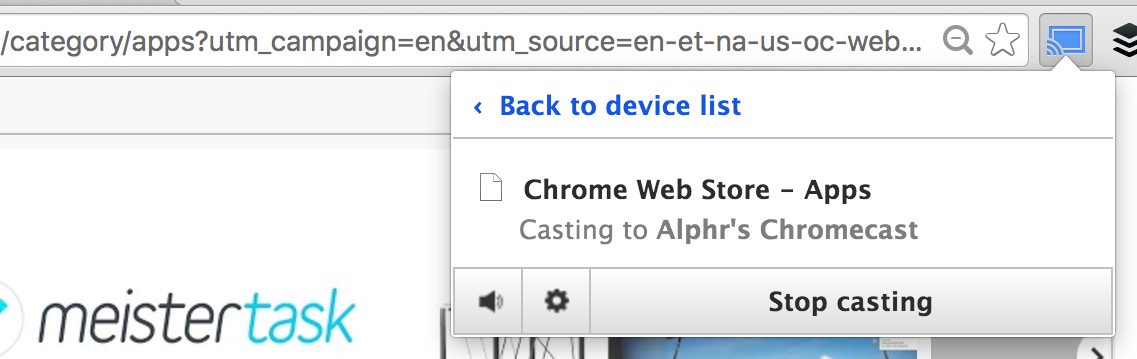
If you’re already casting a tab, you need to click on the Cast extension button and then “Stop casting”.
-
Once you’ve done that, click on the Cast extension again and then the small arrow in the top-right. You’ll now see the “Optimize for audio” option.

-
Select it, choose your Chromecast and enjoy your music or podcast directly from a tab in your browser without sacrificing quality.