
How to Set Up Universal Control Between Mac and iPad
As of iPadOS 15.4 and macOS Monterey 12.3, Apple has introduced support for Universal Control, the long-awaited feature that's designed to allow multiple Macs and iPads to be controlled with a single mouse and keyboard. Thanks to

Table of Contents
- 1. How to Set Up Universal Control on Mac
- 2. How to Set Up Universal Control on iPad
- 3. How to Adjust or Disable Universal Control on Mac
- 4. Popular Stories
- 5. Crackgate? iPhone Duo Owners Report Screens Breaking Along the Hinge
- 6. Apple Responds to iPhone Duo Display Cracking Reports
- 7. iPhone Duo Fails JerryRigEverything's Dusty Durability Test
As of iPadOS 15.4 and macOS Monterey 12.3, Apple has introduced support for Universal Control, the long-awaited feature that's designed to allow multiple Macs and iPads to be controlled with a single mouse and keyboard.

Thanks to Universal Control, you can use the same cursor and keyboard on any nearby Mac or iPad that's signed into your iCloud account. So, for example, if you have a MacBook Pro and an iPad next to it, your Mac's trackpad and keyboard can be used to navigate the iPad. The same is true of the iPad if you have a keyboard attached.
The advent of Universal Control means you can now drag files from Mac to iPad and vice versa, although on iPad, you will need to have the appropriate app open. If you're dragging a photo from Mac to iPad, for example, you need to open Photos to transfer it –– it can't be placed on the Home screen. It's also worth noting that trackpad gestures for Mac do not work on iPad.
Universal Control should work automatically once you've installed macOS Monterey 12.3 and iPadOS 15.4 because the features are enabled by default, but there are settings that you might want to adjust or if you're not a fan, you might want to turn it off. These steps will also help if, for some reason, it's not turned on.
How to Set Up Universal Control on Mac
- Launch System Preferences from your Mac's Dock, from the Applications folder, or from the Apple menu bar ( -> System Preferences...).
- Select Displays in the preferences panel.

- Click Universal Control....

- Click the checkboxes to enable the following Universal Control features (the first is enabled by default): Allow your cursor and keyboard to move between any nearby Mac or iPad, Push through the edge of a display to connect a nearby Mac or iPad, and Automatically reconnect to any nearby Mac or iPad.

- Click Done.
- Next, click Add Display.
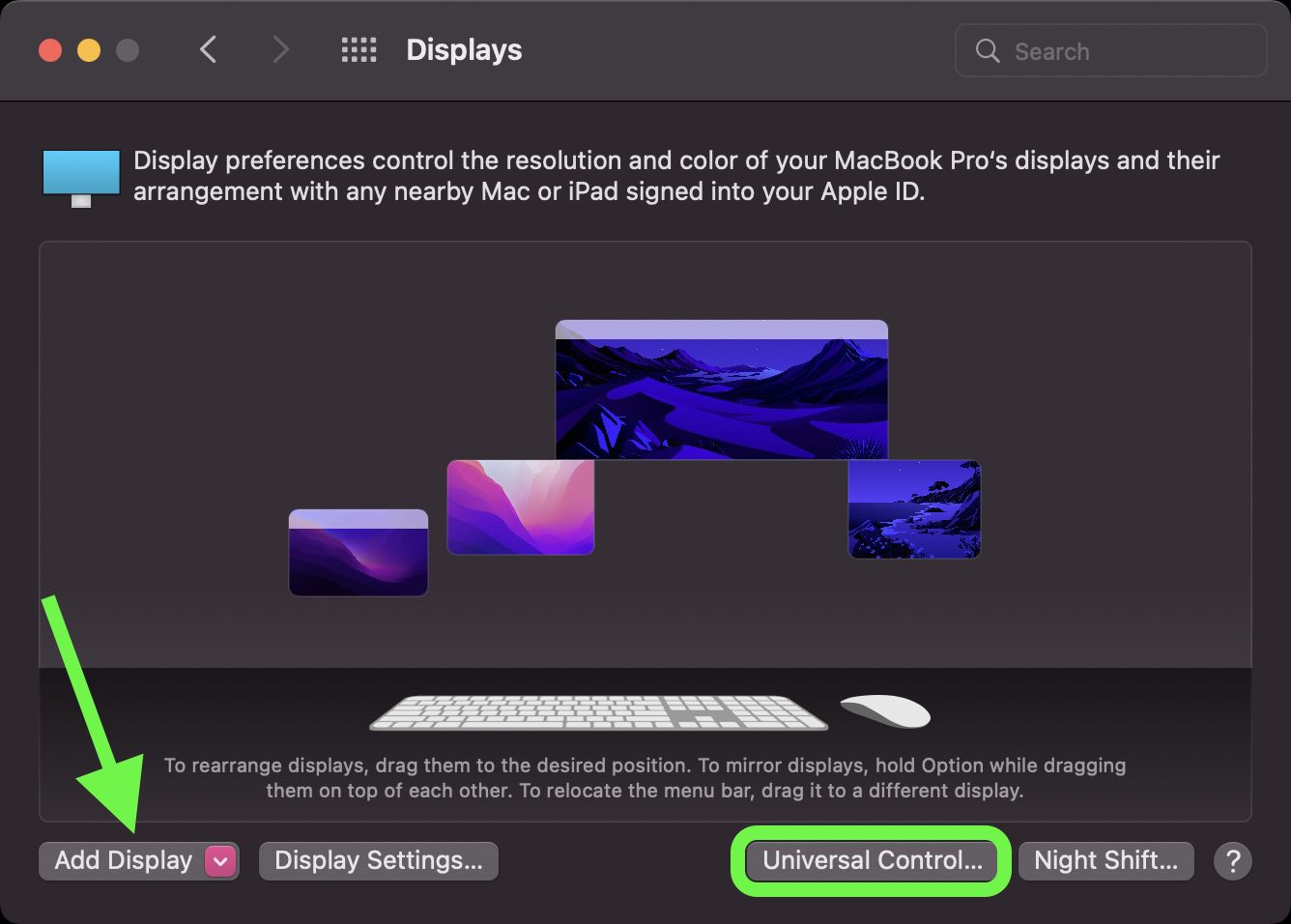
- In the dropdown that appears, you'll see any nearby devices signed into the same Apple ID as your Mac. Click a device listed under "Link Keyboard and Mouse" to use it in Universal Control mode.

With Universal Control enabled, you'll now be able to adjust the arrangement of the displays in the Displays preference panel so that it matches the physical arrangement of your devices.
How to Set Up Universal Control on iPad
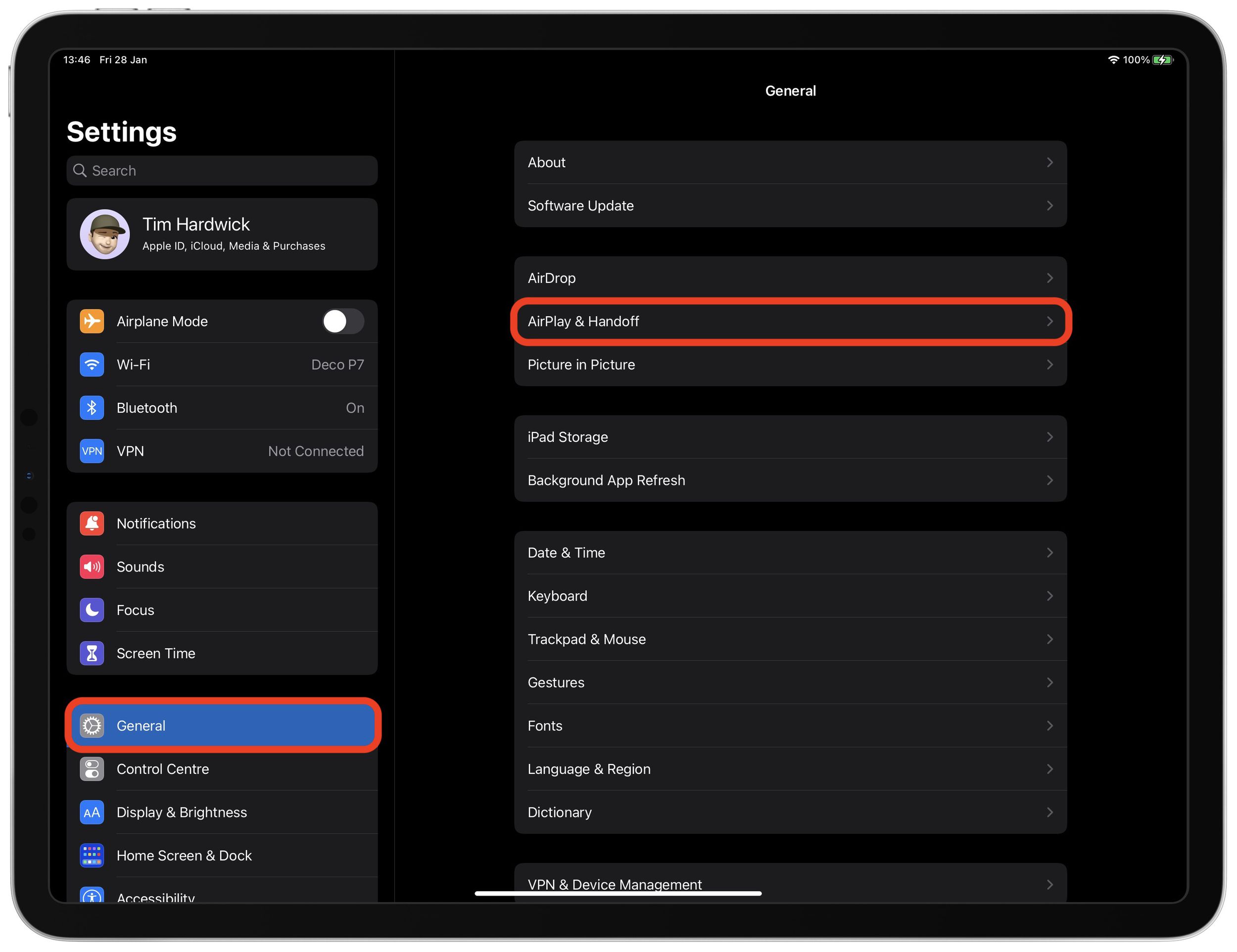
- Launch the Settings app on your iPad.
- Tap General in the sidebar.
- Tap AirPlay & Handoff in the menu window.
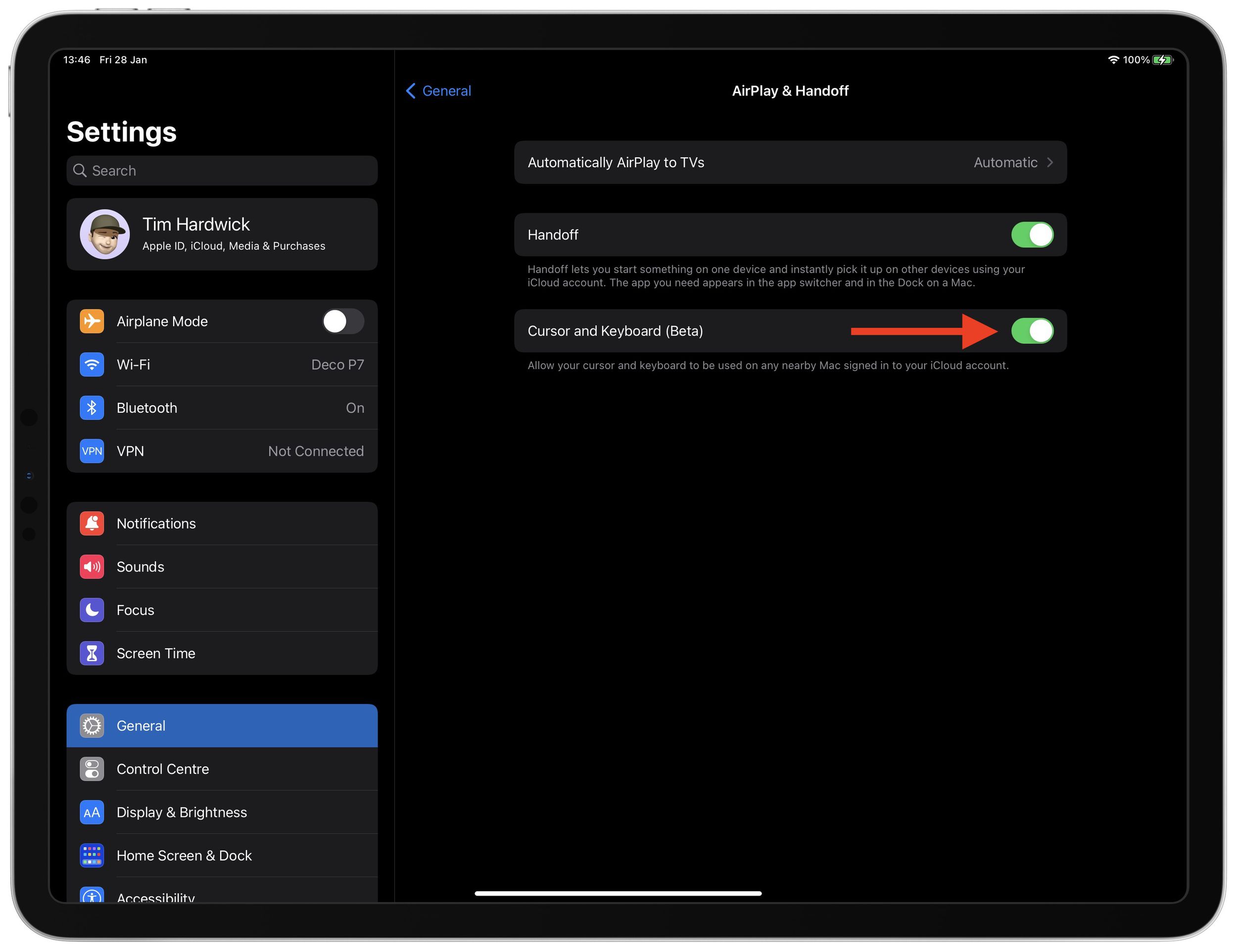
- Toggle on the switch next to Cursor and Keyboard (Beta).
How to Adjust or Disable Universal Control on Mac
- Launch System Preferences from your Mac's Dock, from the Applications folder, or from the Apple menu bar ( -> System Preferences...).
- Select Displays in the preferences panel.
- Click Universal Control....

- Uncheck the boxes next to the following settings you want to disable: Allow your cursor and keyboard to move between any nearby Mac or iPad, Push through the edge of a display to connect a nearby Mac or iPad, and Automatically reconnect to any nearby Mac or iPad.

Note that Universal Control is still in beta as of writing, so there may be some hiccups when using it. In our testing it proved very stable, although we did run into an issue where we needed to restart the Mac to get it to work. If you have an issue getting Universal Control up and running after updating, restarting the Mac and the iPad might help.
Popular Stories

Crackgate? iPhone Duo Owners Report Screens Breaking Along the Hinge

Apple Responds to iPhone Duo Display Cracking Reports
