
How to Transfer Files Between Your Mac and Your iPhone and iPad
This article shows you how to share files between your Mac and your iPhone and iPad using the new route in Catalina. How to Transfer Files From Mac to iPhone/iPad How to Transfer Files From iPhone/iPad to Mac How to Delete Files o

Table of Contents
- 1. How to Copy Files From Mac to iPhone and iPad
- 2. How to Copy Files From iPhone and iPad to Mac
- 3. How to Delete files on your iPhone and iPad.
- 4. Popular Stories
- 5. Apple Responds to iPhone Duo Display Cracking Reports
- 6. Crackgate? iPhone Duo Owners Report Screens Breaking Along the Hinge
- 7. iPhone Duo Fails JerryRigEverything's Dusty Durability Test
This article shows you how to share files between your Mac and your iPhone and iPad using the new route in Catalina.
- How to Transfer Files From Mac to iPhone/iPad
- How to Transfer Files From iPhone/iPad to Mac
- How to Delete Files on Your iPhone and iPad
With the release of macOS Catalina, Apple said goodbye to iTunes and broke it up into separate Mac apps for Music, Podcasts, and Apple TV, meaning the functions for managing a connected iPhone, iPad or iPod touch needed a new home.

It's not immediately obvious, but Apple chose to integrate these device functions into the Finder, so now you can choose transfer files, manage iCloud and local backups, and restore or update your iOS device without even opening another application on your Mac.
How to Copy Files From Mac to iPhone and iPad
- Plug your iPhone, iPad, or iPod touch into your Mac using the supplied cable. If you have a USB-C Mac, you may need an adapter.
- Open a Finder window by clicking the Finder icon in the Dock.
- Click your iOS device's name in the sidebar.

- If this is the first time connecting your device to your Mac, click Trust in the Finder window.
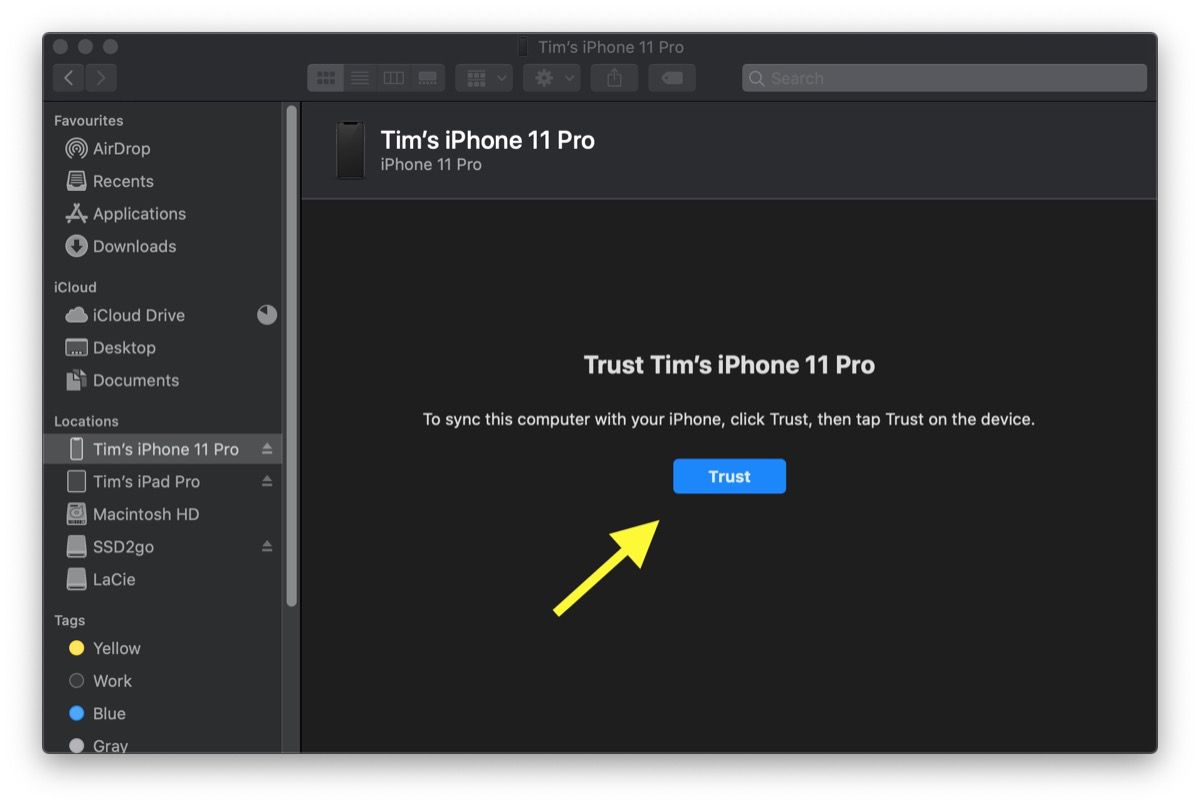
- Tap Trust on your device when prompted, then enter your passcode to confirm.
- Click the Files tab to see a list of apps that can share files. If you don't see a Files section, your device doesn't have any apps that can share files.

- Open another Finder window (Command-N) and select the files on your Mac that you want to copy to your iPhone, iPad, or iPod touch. Only select files that work with an app on your iOS device. (Check the app’s user guide to see which ones work.)
- Drag the file(s) to the compatible app on your iOS device.
Finder will automatically copy them across to your iOS device. Depending on the size of the file(s), you may have to wait a while for the transfer to complete.
How to Copy Files From iPhone and iPad to Mac
- Plug your iPhone, iPad, or iPod touch into your Mac using the supplied cable.
- Open a Finder window by clicking the Finder icon in the Dock.
- Click your iOS device's name in the sidebar.
- If this is the first time connecting your device to your Mac, click Trust in the Finder window.
- Tap Trust on your device when prompted, then enter your passcode to confirm.
- Click the Files tab to see a list of apps that can share files. If you don't see a Files section, your device doesn't have any apps that can share files.
- Click the triangle next to an app to see the files that you can share.
- Open another Finder window (Command-N) and navigate to the location on your Mac where you'd like to copy the files on your iOS device to.

- Select the files on your iOS device that you want to copy, then drag the file(s) to the open location on your Mac in the other Finder window.
Finder will automatically copy the files to your Mac. Depending on the size of the file(s), you may have to wait a while for the transfer to complete.
How to Delete files on your iPhone and iPad.
- Plug your iPhone, iPad, or iPod touch into your Mac using the supplied cable.
- Open a Finder window by clicking the Finder icon in the Dock.
- Click your iOS device's name in the sidebar.
- Click the Files tab to see a list of apps that contain files. If you don't see a Files section, your device doesn't have any apps that can share files.
- Click the triangle next to an app to see the files it contains.
- Select the file that you want to delete, then right-click (Ctrl-cick) it and select Delete.
- Click Delete to confirm.
There are often other ways to delete files from an app. See the app's user guide to find out more.
Popular Stories

Apple Responds to iPhone Duo Display Cracking Reports

Crackgate? iPhone Duo Owners Report Screens Breaking Along the Hinge
