
How to Erase and Factory Reset a Pre-2017 Mac
If you plan to give away, sell, or trade in your old Mac, the first thing you should do for security and practical reasons is erase the data on it and perform a factory reset. This article shows you how. If yours is an Apple silic

Table of Contents
- 1. First, Back Up Your Data
- 2. Unlink your Apps
- 3. Sign Out of iCloud
- 4. How to Erase and Reset Your Mac
- 5. Popular Stories
- 6. Crackgate? iPhone Duo Owners Report Screens Breaking Along the Hinge
- 7. Apple Music Has a Hidden iPod You Can Play With
- 8. iPhone Duo Fails JerryRigEverything's Dusty Durability Test
If you plan to give away, sell, or trade in your old Mac, the first thing you should do for security and practical reasons is erase the data on it and perform a factory reset. This article shows you how. If yours is an Apple silicon Mac running macOS Monterey or later or an Intel Mac with the Apple T2 Security Chip (2017-2020 models), follow the steps to erase all content and settings instead of following the steps in this article.
First, Back Up Your Data
Before you do anything, you should back up the files on your Mac. You could do this manually by copying across files onto an external drive. If you use iCloud, your photos, mail, contacts, documents, and so on should be automatically backed up in cloud storage.
 However, we highly recommend that you take the time to perform a Time Machine backup of your system using an external drive. That way, the same backup volume can be used by Apple's Migration Assistant during a macOS installation to quickly transfer your applications, files and settings from the old Mac to a new one.
Check out our dedicated guide on how to back up your Mac using Time Machine.
Unlink your Apps
There are certain apps that will need to be manually unlinked from your Mac before you say goodbye to it. Some third-party apps require licenses that only work on a limited number of computers, so think about any licenses you may have purchased.
Similarly, you should de-authorize your Apple Account on the Mac, as this removes access to content that you previously purchased from iTunes, Apple TV+, or other Apple services associated with your account.
Here's how to deauthorize your Mac:
- Open the iTunes app.
- Go to Account ➝ Authorizations ➝ Deauthorize This Computer.
- Sign in with your Apple Account email and password.
- Click Deauthorize.
Sign Out of iCloud
It's also important to disable Find My Mac and sign out of iCloud in macOS. That way you'll know for sure there isn't anything lingering on your Mac that links your Apple Account to this machine. The following steps show you how.
- Click the Apple () symbol in the top left corner of your Mac's screen and select System Preferences....

- Click iCloud in the preference pane.
- Uncheck all the boxes in the list to remove copies of the related data on this Mac.

- Click Sign Out.
How to Erase and Reset Your Mac
Now that you've taken the above precautionary steps and unlinked your purchases and accounts, it's time to erase your Mac's drive and reset the system to its factory defaults.
- Click the Apple () symbol in the top left corner of your Mac's screen and select Restart....
- Click Restart.
- Hold down the Command and R keys as soon as you hear the Mac tone indicating a reboot.
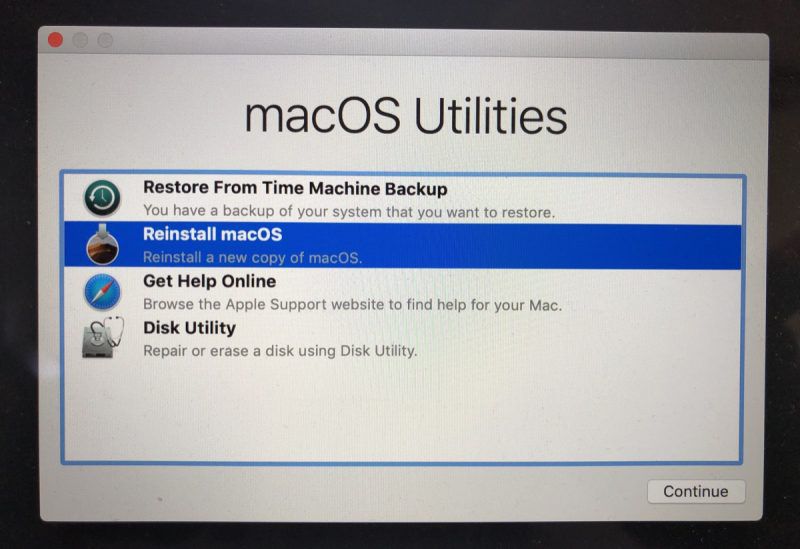
- Wait for the macOS Utilities screen to appear, then click Disk Utility.

- Choose your Mac's system drive, usually named Macintosh HD, then click Erase.
- Select the Format option Mac Extended (Journaled) or APFS.

- Click Erase, confirm the action if prompted, and wait until formatting is complete.
- Next, close Disk Utility and click Reinstall macOS.
- Follow the installation prompts and allow the procedure to continue until you see the Setup Assistant appear.
- Press the keys Command+Q to shut down your Mac.
And that's it. You're now ready to sell your Mac, pass it on, set it up as new, or restore a backup.
Popular Stories

Crackgate? iPhone Duo Owners Report Screens Breaking Along the Hinge

Apple Music Has a Hidden iPod You Can Play With
