
How to Disable Lock Screen Notification Previews on iPhone and iPad
How to Disable Lock Screen Notification Previews on iPhone and iPadMonday June 15, 2020 11:07 AM PDT by Tim HardwickIf you're concerned about people reading the contents of notifications that appear on the Lock screen of your iPho
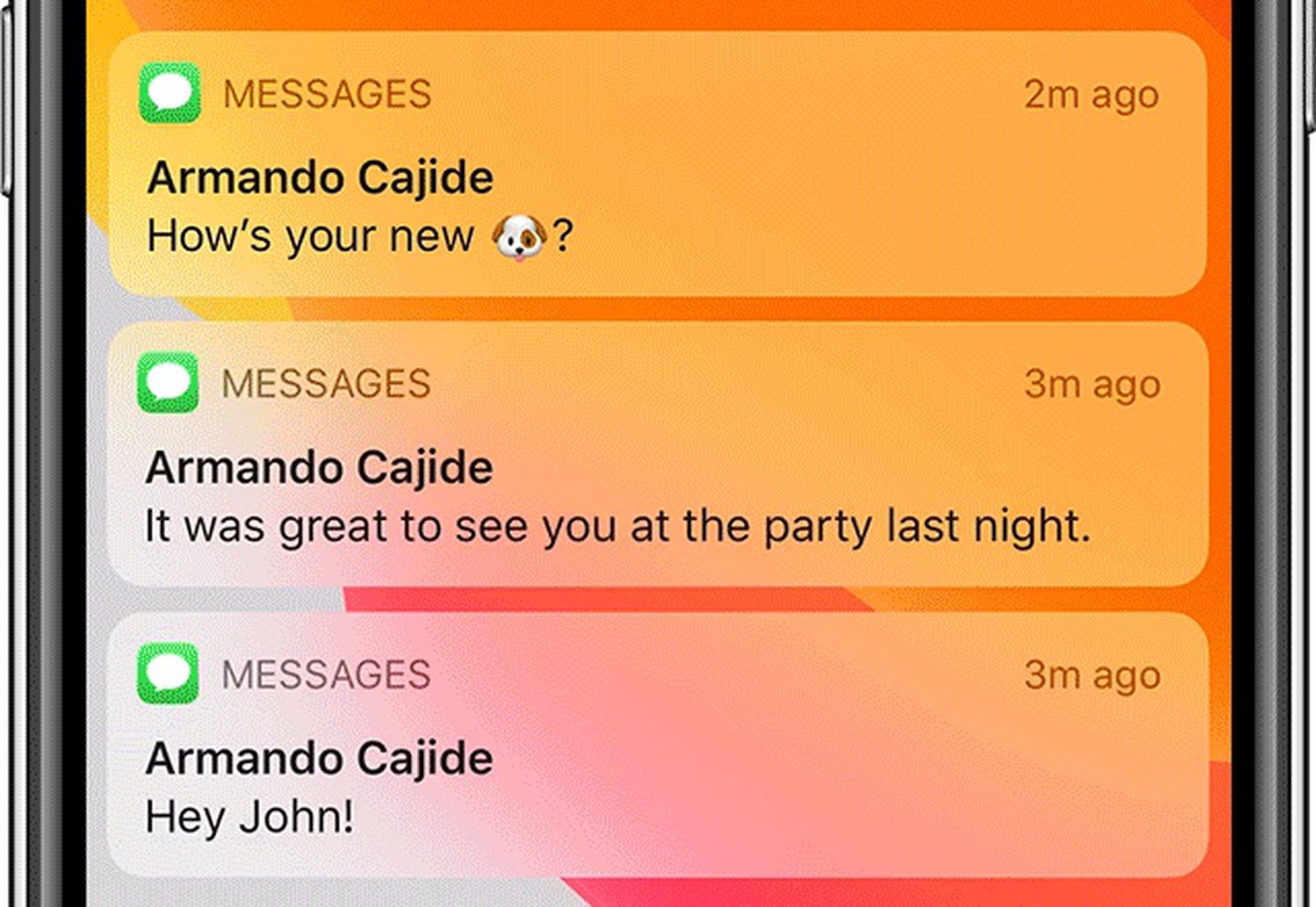
Table of Contents
How to Disable Lock Screen Notification Previews on iPhone and iPad
If you're concerned about people reading the contents of notifications that appear on the Lock screen of your iPhone or iPad when you're not around, you'll be happy to learn that Apple's mobile software provides a quick solution.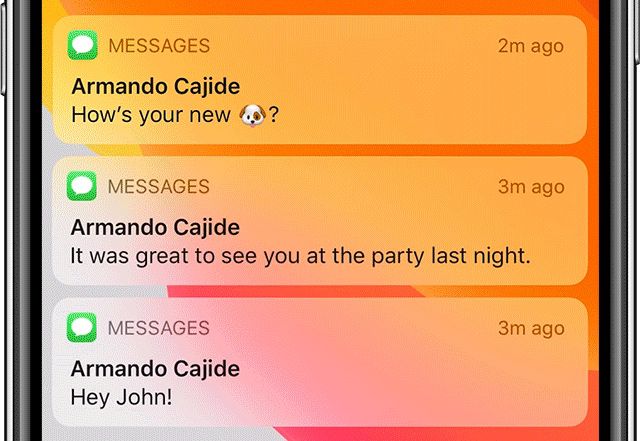
In iOS, you can set your iPhone or iPad to never show notification previews, or to show them only when the device is unlocked. The following steps show you how it's done. Note that the setting applies to alerts from both native Apple apps and third-party apps.
- Launch the Settings app on your iPhone or iPad.
- Tap Notifications.
- Tap Show Previews.
- Tap Never or When Unlocked.

With the When Unlocked setting turned on, every app that you have notifications enabled for will appear on the Lock Screen, but without the actual content of the notification displayed.
If your iOS device has Face ID, you can quickly make that content appear by glancing at your phone screen. Otherwise, place your finger on the Home Button to activate Touch ID and unlock your device.
If you choose Never in the Show Preview settings described above, notifications won't show their content even when your iPhone or iPad is unlocked. Note that on devices with Face ID, the option to show previews when the iPhone is unlocked is the default option.
Popular Stories

Apple Responds to iPhone Duo Display Cracking Reports

Crackgate? iPhone Duo Owners Report Screens Breaking Along the Hinge

