
How to Mirror Your iPhone or iPad Screen on Apple TV or a Smart TV
How to Mirror Your iPhone or iPad Screen on Apple TV or a Smart TVMonday June 8, 2020 3:31 PM PDT by Tim HardwickDid you know that you can use the AirPlay feature on an iPhone or iPad to mirror its display on an Apple TV or AirPla

Table of Contents
How to Mirror Your iPhone or iPad Screen on Apple TV or a Smart TV
Did you know that you can use the AirPlay feature on an iPhone or iPad to mirror its display on an Apple TV or AirPlay 2-compatible smart TV? This article shows you how.

Before following the steps below, make sure that your iOS device is connected to the same Wi-Fi network as your Apple TV or AirPlay 2-compatible smart TV.
Not sure if your smart TV supports AirPlay 2? You can find the official list of AirPlay 2-compatible smart TVs on Apple's Home Accessories webpage.
- Open Control Center on your iOS device: On an iPad with a Home button, double-tap the Home button; on iPhone 8 or earlier, swipe up from the bottom of the screen; and on a 2018 iPad Pro or iPhone X and later, swipe down from the upper right of the screen.
- Tap Screen Mirroring.
- Select your Apple TV or AirPlay 2-compatible smart TV from the list.
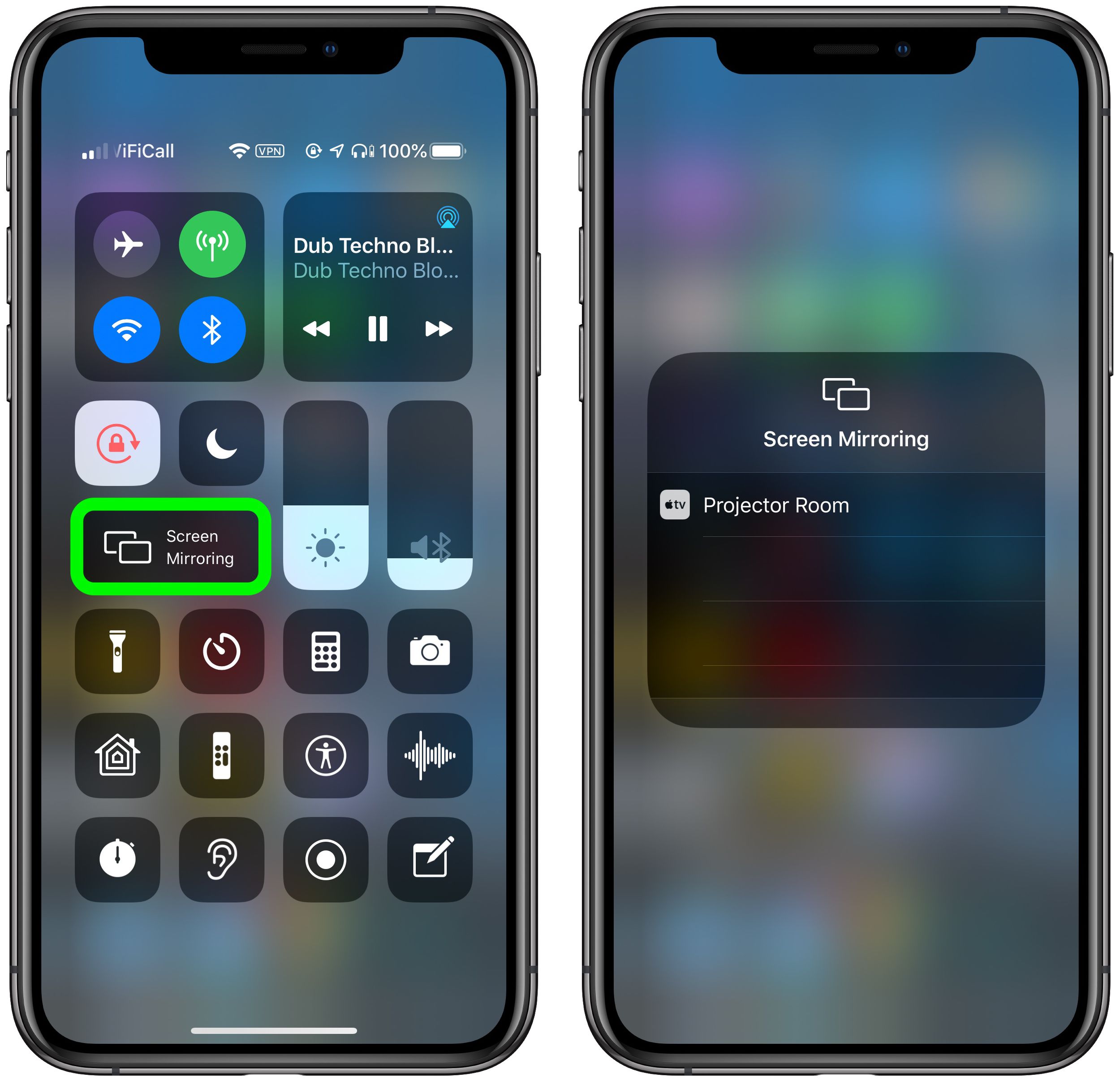
- If an AirPlay passcode appears on your TV screen, enter the passcode on your iOS device.
- Once screen mirroring is established, you can interact with your iPhone or iPad in the usual way.
Once you've followed the steps, you should see everything you do on your iOS device mirrored on the big screen.
To stop mirroring your iOS device, open the Control Center again, tap Screen Mirroring, then tap Stop Mirroring. Alternatively, if mirroring to an Apple TV, press the Menu button on your Apple TV Remote.
Popular Stories

Apple Responds to iPhone Duo Display Cracking Reports

Crackgate? iPhone Duo Owners Report Screens Breaking Along the Hinge

