
Hide iPhone Find My Location Without Raising Suspicion
Hide iPhone Find My Location Without Raising SuspicionFriday November 15, 2024 5:10 AM PST by Tim HardwickEver need a moment of privacy without raising suspicion? If you're secretly shopping for a holiday gift or planning a surpri

Table of Contents
Hide iPhone Find My Location Without Raising Suspicion
Ever need a moment of privacy without raising suspicion? If you're secretly shopping for a holiday gift or planning a surprise party, you might want to temporarily obscure your actual location in Apple's Find My app on your iPhone without completely turning off location sharing.

Here's a clever trick that lets you keep sharing enabled while displaying a different location – all by using another Apple device you own.
To hide your actual location, you'll need to own an iPhone and an iPad, or two iPhones or two iPads (i.e. not a Mac) signed in to your Apple Account with Find My enabled. This method works by telling Find My to use a stationary device's location instead of your iPhone's.
Start by leaving the device you want to use as your displayed location (like an iPad) in a convincing spot – perhaps your home or office. Then, take your iPhone and follow these steps:
- Open the Find My app and tap the Me tab at the bottom of the screen.
- Scroll down to find "Use This iPhone as My Location" and make sure it's toggled off.
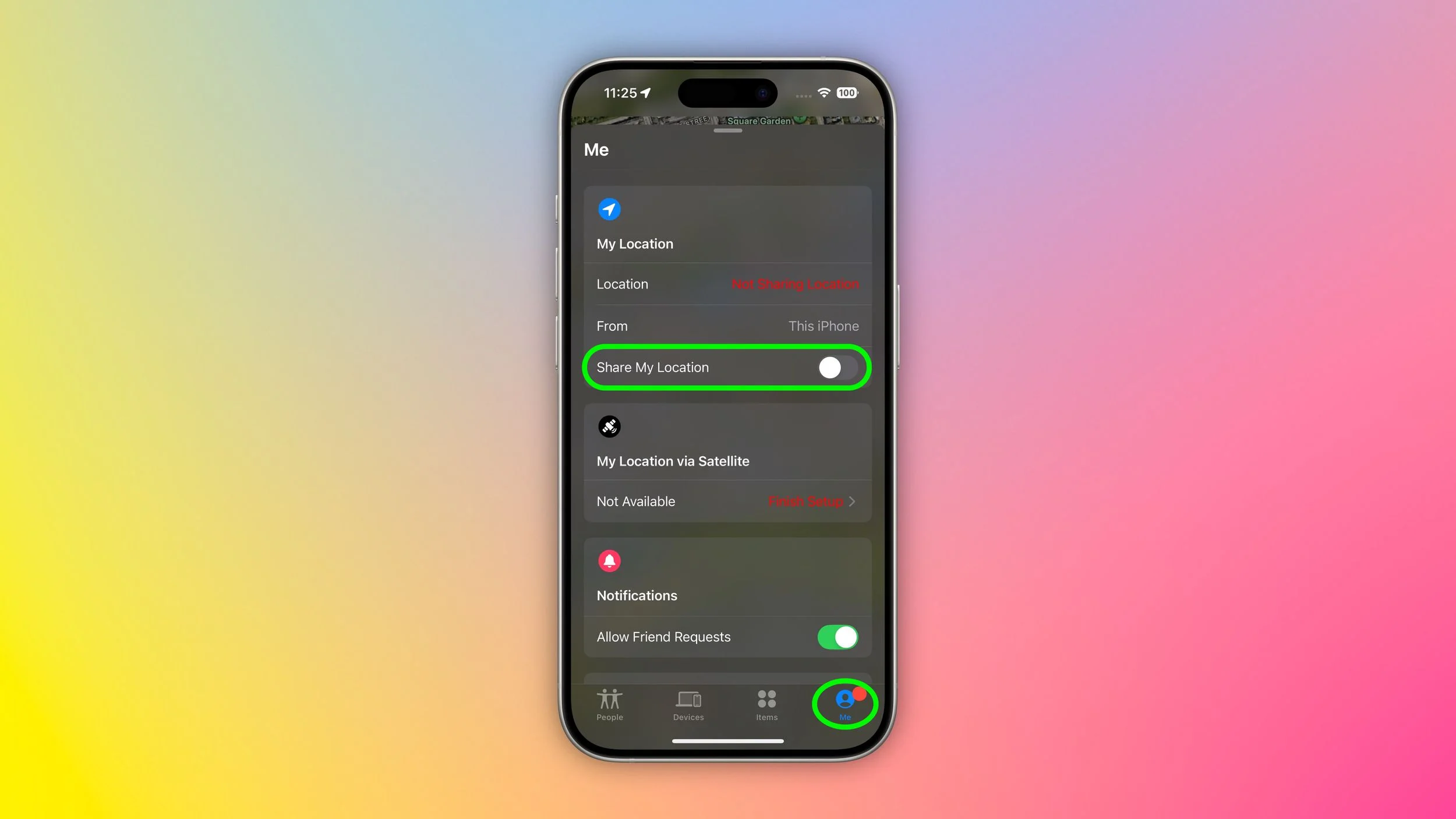
- Grab your other Apple device and open Find My.
- Tap the Me tab, then select "Use this [device] as My Location."
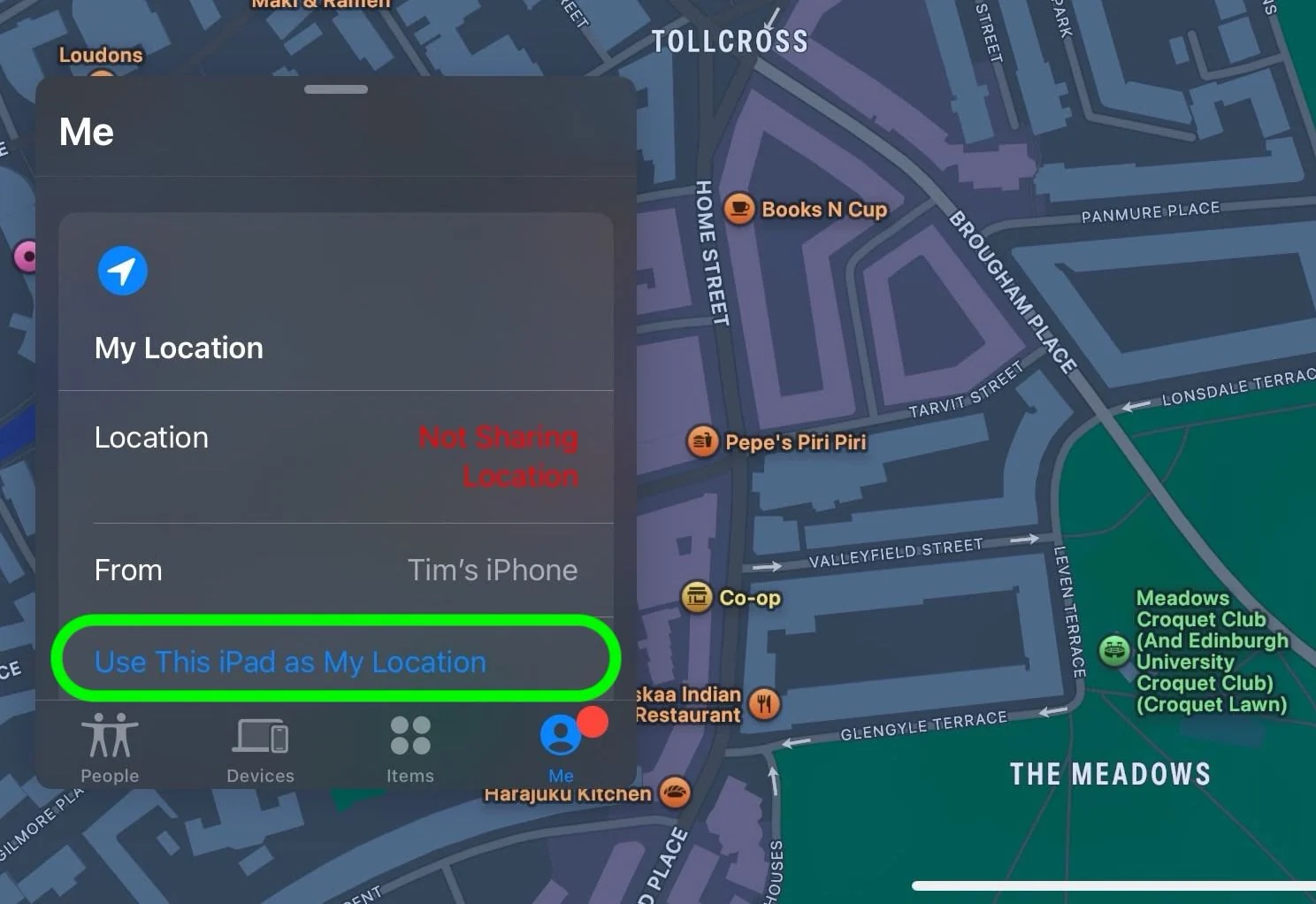
- Toggle on the switch next to Share My Location. Your shared location will now show where this device is stationed, not where you actually are with your iPhone.
- When you're ready to resume normal location sharing, simply return to your iPhone's Find My app and toggle "Use This iPhone as My Location" back on.
Remember that this trick only works as long as your decoy device stays put and powered on. Lastly, we trust that you'll use this tip responsibly – like keeping that upcoming surprise party under wraps!
Popular Stories

Older Siri Remotes Now Show Up in Find My With iOS 27.2

Apple Responds to iPhone Duo Display Cracking Reports

