
Customizing the Action Button on iPhone
Customizing the Action Button on iPhoneThursday September 18, 2025 2:52 AM PDT by Tim HardwickApple's iPhone 17 and iPhone 18 Pro models feature a programmable Action button that replaces the traditional Ring/Silent switch above t

Table of Contents
Customizing the Action Button on iPhone
Apple's iPhone 17 and iPhone 18 Pro models feature a programmable Action button that replaces the traditional Ring/Silent switch above the volume buttons. Keep reading to learn what the Action button is capable of, and how you can customize it.
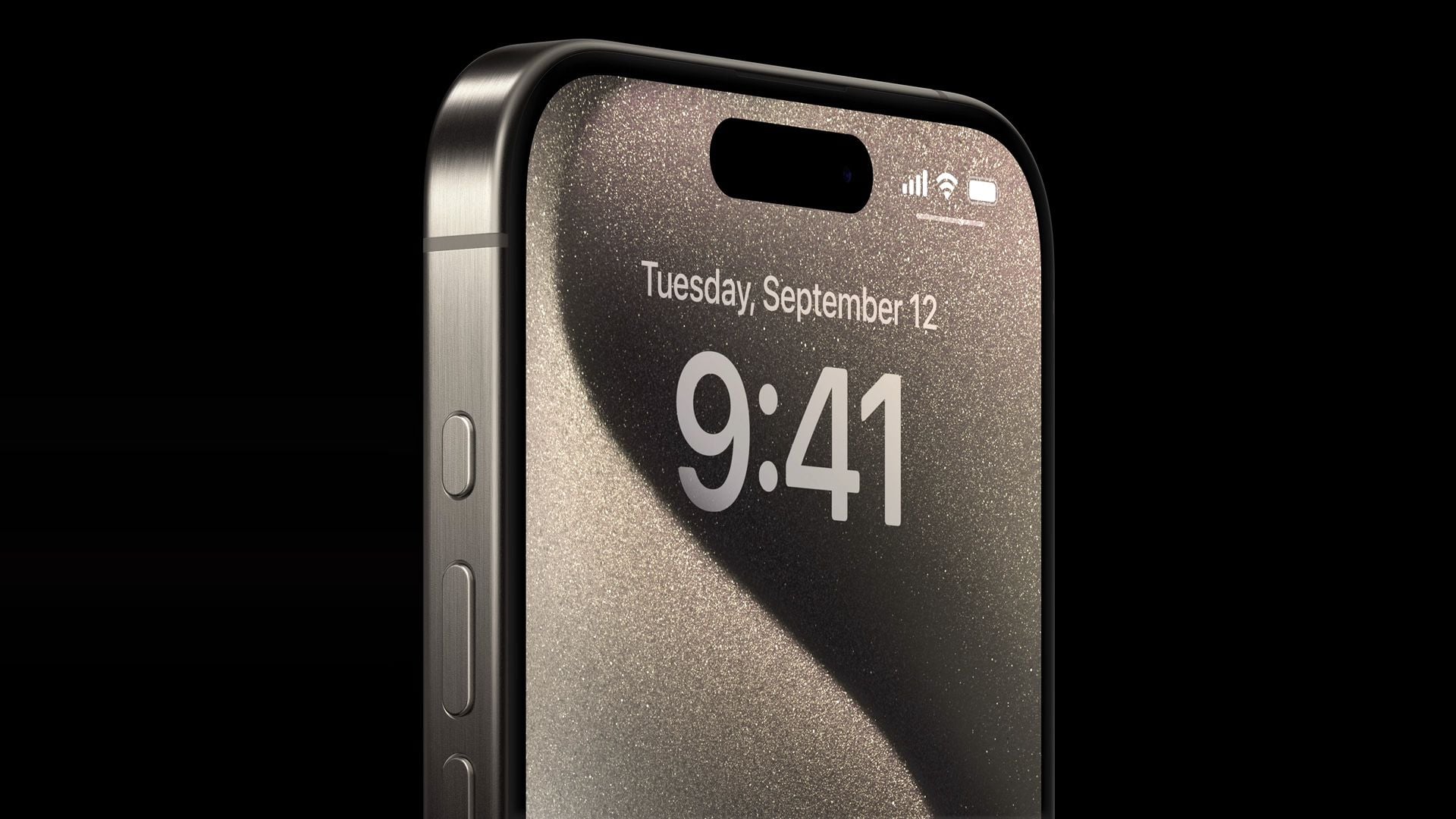
The Action button on iPhone replaces the traditional iPhone switch that activates Ring and Silent. By default the new button still activates these two functions via a long press, but you can also make a long press perform a range of other functions, including quickly accessing the camera or flashlight, activating Voice Memos, Focus modes, Translate, and accessibility features like Magnifier. You can also associate it with individual Shortcuts, opening up a wealth of other possibilities.
Customizing the Action Button
If you want to change the Action button's default Ring/Silent behavior, here's how to customize it. Open Settings -> Action Button, and swipe left and right to browse the options.

If there are additional options for a selected action, two chevrons will appear below the action. Tap them to see the list of options. Here's a full list of customizable functions:
- Silent Mode: Like the Ring/Silent switch on existing iPhone models, toggle silent mode on or off, which will mute or unmute the ringer and alerts.
- Focus: Activate or deactivate a Focus mode (Do Not Disturb is the default).
- Camera: Take a photo (the default), a selfie, video, portrait, or portrait selfie.
- Visual Intelligence: Activate Visual Intelligence to learn more about the world around you and get more information about what you see.
- Flashlight: Turn on or off the flashlight on the back of the device.
- Voice Memo: Start or stop recording a voice memo with the Voice Memos app.
- Recognize Music: Find out what song is playing nearby or on your iPhone with Shazam.
- Translate: Translate phrases or have a conversation with someone in another language.
- Magnifier: Activate the Magnifier app to use the iPhone's camera as a magnifying glass to zoom in on small text or objects.
- Controls: Quickly Access Your Favorite Control
- Shortcut: Open your favorite app, or run a shortcut created in or downloaded from the Shortcuts app, such as sending a message, playing a playlist, or controlling smart home devices.
- Accessibility: Access to various Vision settings (Classic Invert, Color Filters, Detection Mode, Increase Contrast, Reduce Motion, Reduce Transparency, Reduce White Point, Smart Invert, VoiceOver, Zoom) Motor settings (Switch Control, Voice Control, Full Keyboard Access, AssistiveTouch, Apple Watch Mirroring, Control Nearby Devices) Hearing settings (Background Sounds, Left/Right Balance, Live Captions) and General settings (Guided Access, Live Speech).
- No Action.
For the Shortcuts and Accessibility actions, you need to tap the blue button below the action and select a specific option, otherwise the Action button does nothing.
Fine-tuned haptic feedback and visual cues accompany every long press of the Action button, ensuring you know it is launching the intended action. Meanwhile, a regular short press confirms whatever setting you have customized it to control.
Apple's standard iPhone 15 and iPhone 15 Plus models feature the traditional Ring/Silent switch, making the "Action" button one of the key differentiating features of iPhone 15 Pro, iPhone 16, iPhone 17, and iPhone 18 Pro models.
Popular Stories

Crackgate? iPhone Duo Owners Report Screens Breaking Along the Hinge

Apple Music Has a Hidden iPod You Can Play With

