
Stay Focused or Chill Out With This Hidden iPhone Feature
Stay Focused or Chill Out With This Hidden iPhone FeatureMonday May 6, 2024 9:31 AM PDT by Tim HardwickDo you sometimes struggle to maintain focus while you're working, or find it difficult to unwind and relax at the end of the da

Table of Contents
- 1. Enable Background Sounds on iPhone and iPad
- 2. Accessibility Shortcut Access
- 3. Set Up the Accessibility Shortcut
- 4. Access Accessibility Shortcut
- 5. Popular Stories
- 6. Crackgate? iPhone Duo Owners Report Screens Breaking Along the Hinge
- 7. Apple Music Has a Hidden iPod You Can Play With
- 8. Apple Responds to iPhone Duo Display Cracking Reports
- 9. Next Article
Stay Focused or Chill Out With This Hidden iPhone Feature
Do you sometimes struggle to maintain focus while you're working, or find it difficult to unwind and relax at the end of the day? Believe it or not, your iPhone could help with that. Keep reading to learn how.

If you are looking to minimize distractions when you focus on something, or just want to zone out after a hard day's work, it's well worth checking out the Background Sounds feature on your iPhone or iPad. Whether you are at home or in a public place, you can play calming sounds with just a few taps on your device to help you concentrate or rest.
In iOS and iPadOS, Apple's Background Sounds include balanced, bright, and dark noise, as well as natural sounds like ocean, rain, and stream. All of the sounds can be set to play in the background to mask unwanted environmental or external noise, and the sounds mix into or duck under other audio and system sounds, so you don't have to drown out what's important to you.
Enable Background Sounds on iPhone and iPad
- Launch the Settings app on your iPhone or iPad.
- Tap Accessibility.
- Under "Hearing," tap Audio & Visual.
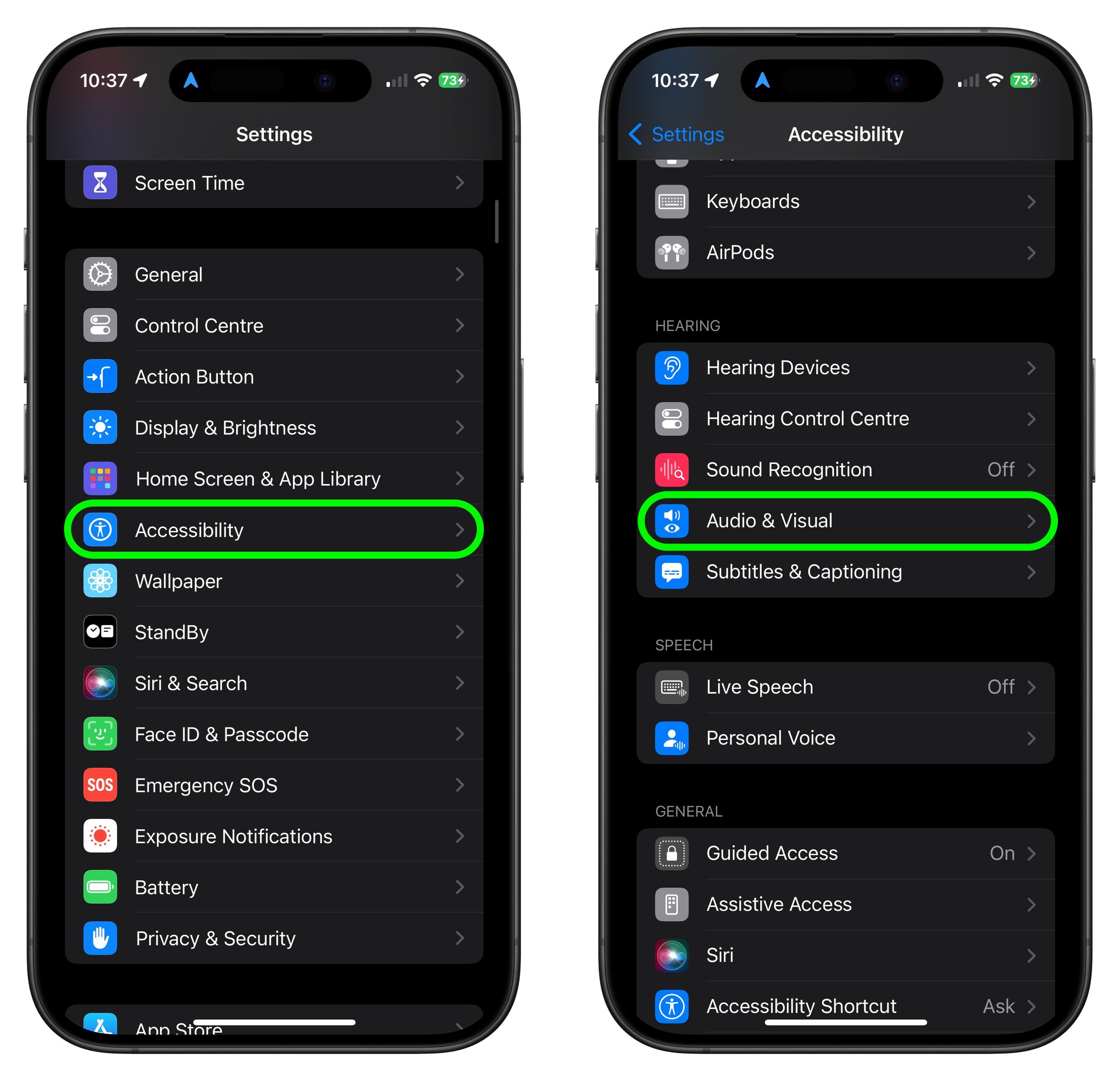
- Tap Background Sounds, then tap the switch to turn on Background Sounds on the next screen.
- Tap Sound to choose a sound effect. Choose from Balanced Noise, Bright Noise, Dark Noise, Ocean, Rain, and Stream.

Your device will need to download individual sound effects when you play them for the first time, so make sure you have an internet connection, but after that you can play the background sound wherever you are.
Note that the last screen in the steps optionally lets you set the volume of the sound, and includes an additional option to automatically stop the sound when you lock your device.
Accessibility Shortcut Access
Once you have downloaded the background sounds, you can quickly start and stop the audio via an Accessibility Shortcut. Here's how to set one up.
Set Up the Accessibility Shortcut
- Tap through to Settings ➝ Accessibility.
- Select Accessibility Shortcut near the bottom of the menu.
- Tap Background Sounds to select it. You can also drag the three lines icon at the far right to change the order in which it appears in the shortcuts menu.

You can triple click your iPhone's Side button to access the Accessibility Shortcut at any time. Alternatively, you can add an Accessibility Shortcut button to your device's Control Center in the following way.
Access Accessibility Shortcut
- Tap through to Settings ➝ Control Center.
- Find Accessibility Shortcuts under the "More Controls" list and then tap the entry to include it in Control Center.

Once that's done, swipe from the top-right corner of your screen to bring up Control Center, then simply tap Accessibility Shortcut button and then tap Background Sounds to turn the audio on or off.

Background sounds are also available on Macs running macOS Ventura or later. Check out our dedicated how-to article for all the details.
Popular Stories

Crackgate? iPhone Duo Owners Report Screens Breaking Along the Hinge

Apple Music Has a Hidden iPod You Can Play With

