
iOS 26 Screenshots: Turn Off Full-Screen Previews
iOS 26 Screenshots: Turn Off Full-Screen PreviewsWednesday July 23, 2025 9:04 AM PDT by Tim HardwickApple has modified the screenshot experience in iOS 26 to accommodate Visual Intelligence and its new Liquid Glass aesthetic. Taki
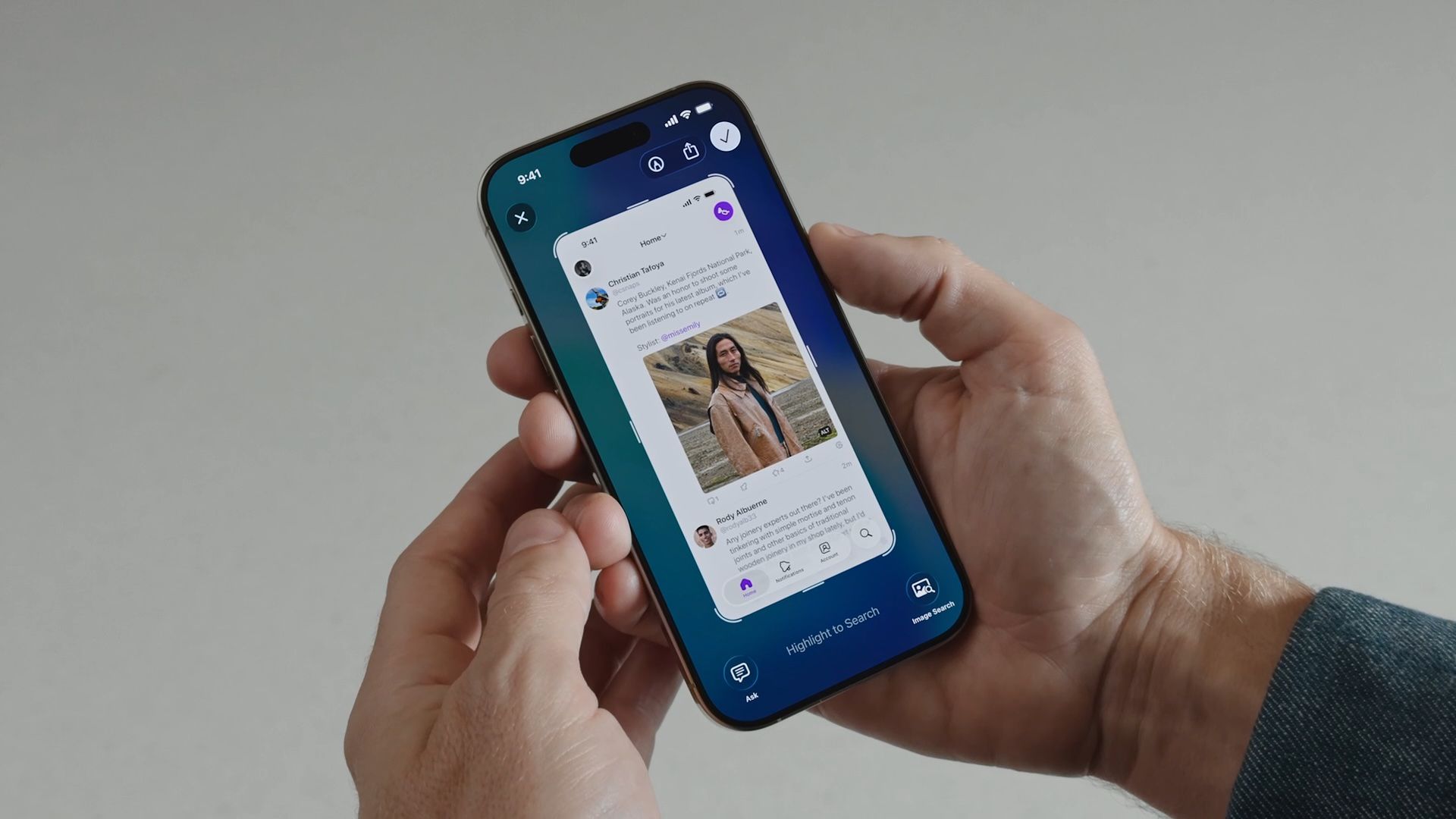
Table of Contents
- 1. Why You Might Want to Switch Back
- 2. Disabling Full-Screen Previews
- 3. Additional Screenshot Options
- 4. Popular Stories
- 5. Crackgate? iPhone Duo Owners Report Screens Breaking Along the Hinge
- 6. Apple Music Has a Hidden iPod You Can Play With
- 7. iPhone Duo Fails JerryRigEverything's Dusty Durability Test
- 8. Next Article
iOS 26 Screenshots: Turn Off Full-Screen Previews
Apple has modified the screenshot experience in iOS 26 to accommodate Visual Intelligence and its new Liquid Glass aesthetic. Taking a screenshot is still done by pressing the Side button and Volume Up button on your iPhone, but the interface has been redesigned, while there's another change that might slow down your workflow if you're used to the streamlined approach taken in iOS 18 and earlier.

Why You Might Want to Switch Back
If you regularly use Apple's screen capture tools in iOS 18, you'll know that screenshots appear as small thumbnails in the bottom-left corner that you can quickly tap to edit and save or ignore. This lets you continue using your iPhone without interruption, while still giving you the option to markup and/or share a screenshot when required.
In contrast, the new full-screen preview mode in iOS 26 displays your screenshot across the entire display by default, complete with editing tools and Visual Intelligence options at the bottom. While this gives you immediate access to cropping, markup, and AI-powered features, it may feel intrusive compared to iOS 18's approach.
Disabling Full-Screen Previews
When you take your first screenshot after updating to iOS 26, you should see an on-screen prompt asking if you'd like to "Switch to Thumbnail View." If you missed this opportunity or accidentally tapped "Not Now," you can still revert to the old thumbnail approach, thanks to a new settings menu:
- Open Settings on your iPhone.
- Tap General.
- Select Screen Capture.
- Toggle off Full-Screen Previews.

Once disabled, screenshots will revert to the familiar iOS 18 behavior, appearing as temporary thumbnails in the bottom-left corner. You can still access all editing features by tapping the thumbnail when you need them, or you can review the images later in the Photos app.
Additional Screenshot Options
While you're in Screen Capture settings, you'll also find new options for enabling HDR screenshots (saved in HEIF image format), a CarPlay Screenshots toggle for when your iPhone is connected to CarPlay, and Visual Lookup (iPhone 15 Pro and newer models only).
Popular Stories

Crackgate? iPhone Duo Owners Report Screens Breaking Along the Hinge

Apple Music Has a Hidden iPod You Can Play With

