
How to Start an Apple Watch Workout With Your Voice
How to Start an Apple Watch Workout With Your VoiceFriday April 14, 2023 8:51 AM PDT by Tim HardwickApple makes it easy to track a workout with your Apple Watch using its stock Workout app. All you have to do is open the app, sele
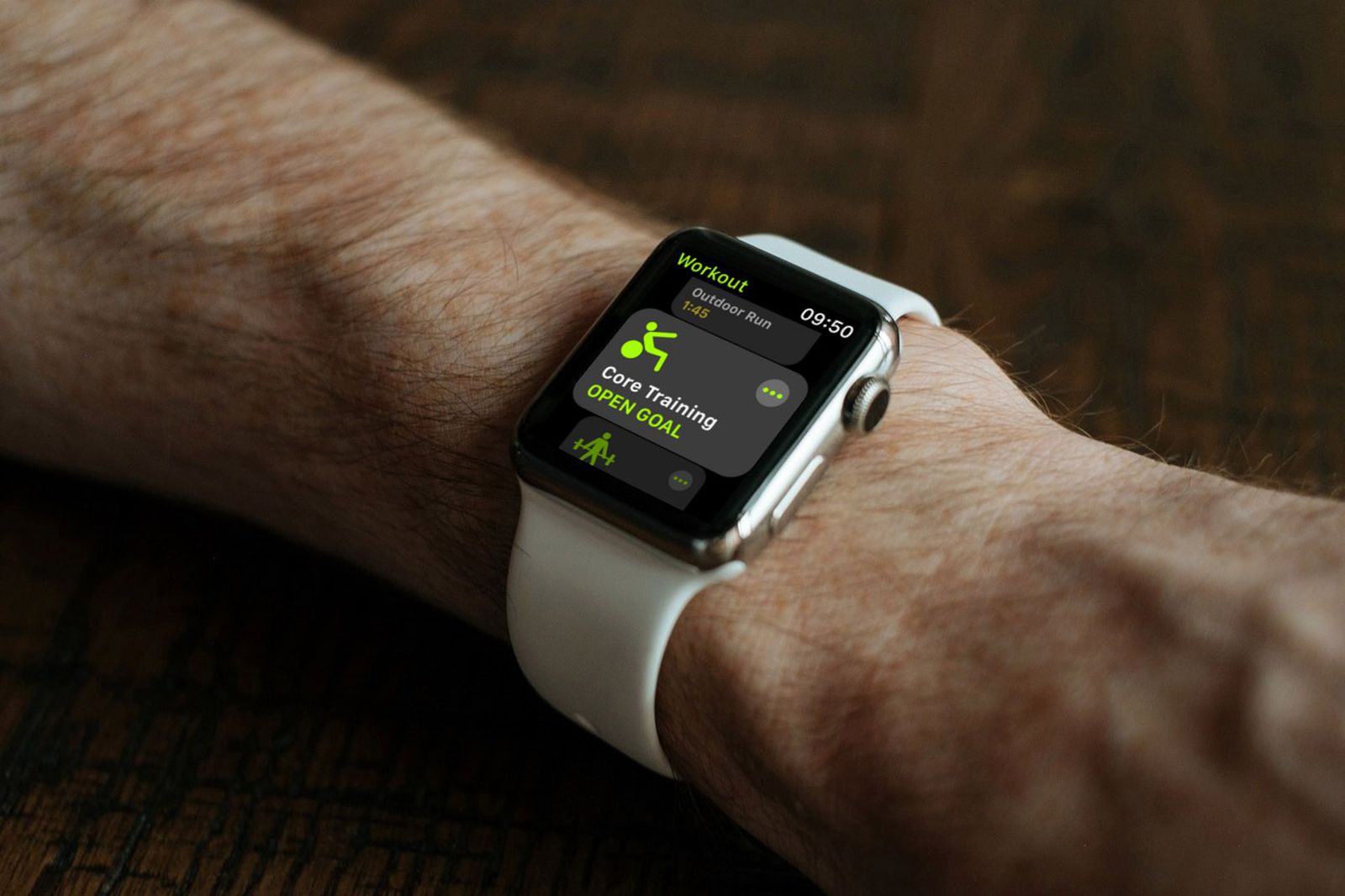
Table of Contents
- 1. How to Start an Apple Watch Workout Handsfree
- 2. How to Get Audible Alerts About Workout Progress
- 3. Popular Stories
- 4. Crackgate? iPhone Duo Owners Report Screens Breaking Along the Hinge
- 5. Apple Music Has a Hidden iPod You Can Play With
- 6. iPhone Duo Fails JerryRigEverything's Dusty Durability Test
- 7. Next Article
How to Start an Apple Watch Workout With Your Voice
Apple makes it easy to track a workout with your Apple Watch using its stock Workout app. All you have to do is open the app, select the workout type, and tap to start. But what if you don't have your hands free? Fortunately Apple has thought of that too.
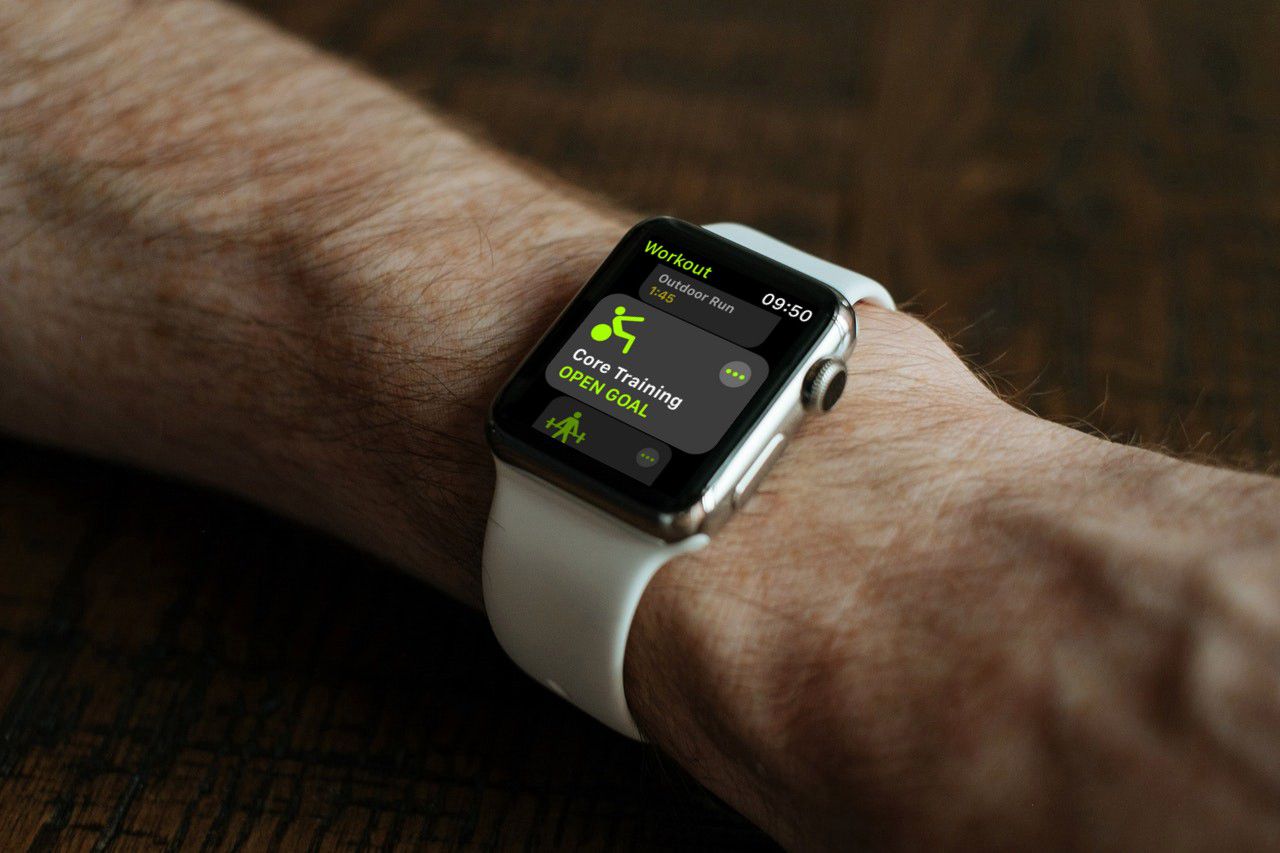
In watchOS 8 and later, it's possible to start a workout using just your voice. And combined with audible alerts, your Apple Watch can keep you up to speed on your workout progress without even having to look at your watch. Here's how it all works.
How to Start an Apple Watch Workout Handsfree
Make sure the Raise to Speak option is enabled in Settings -> Siri on Apple Watch. Otherwise, the following steps won't work.
- Activate Siri by using the Raise to Speak feature (raise your wrist to your face).
- Tell Siri the type of workout you'd like to start, e.g. "Go for a 45-minute outdoor run."
- Wait for the three-second countdown to appear after Siri confirms your workout.
How to Get Audible Alerts About Workout Progress
Apple's Workout app isn't limited to giving you progress alerts via a haptic buzz and an onscreen alert. You can also get checkpoints spoken to you out loud, and you can receive audible alerts when you close your Activity Rings during a workout, too.
All you need to do is enable the Voice Feedback option and make sure you're wearing AirPods or other wireless headphones. To turn on progress voice feedback on your Apple Watch, follow these steps.
- On your Apple Watch, open the Settings app.
- Scroll to the bottom and tap Workout.
- Toggle the switch next to Voice Feedback so it's in the green ON position.
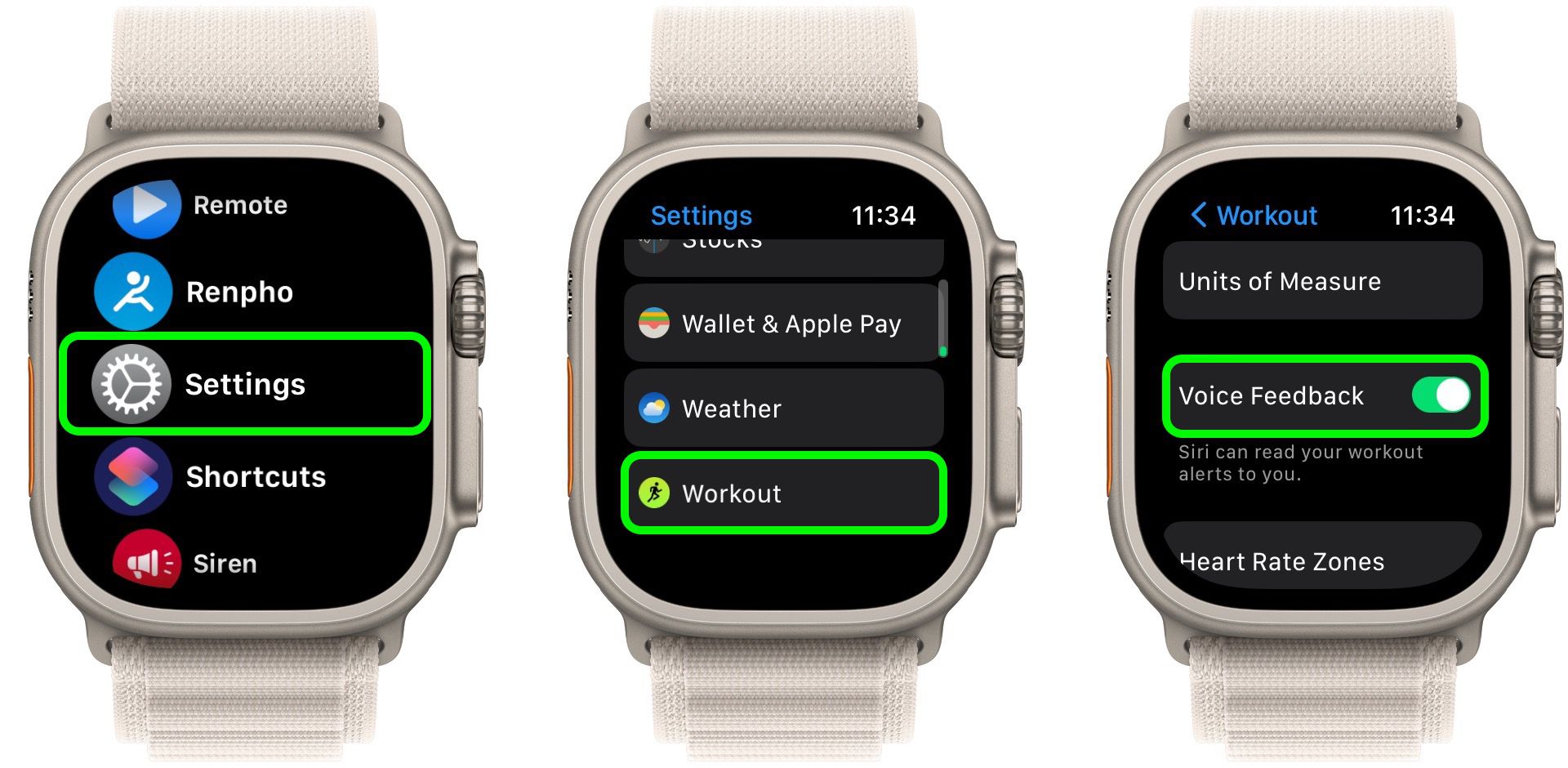
Note that you can find the same Voice Feedback toggle in the Watch app on your iPhone, under the Workout section.
Popular Stories

Crackgate? iPhone Duo Owners Report Screens Breaking Along the Hinge

Apple Music Has a Hidden iPod You Can Play With

