
How to Shuffle Your iPhone's Lock Screen Wallpaper
How to Shuffle Your iPhone's Lock Screen WallpaperThursday March 21, 2024 5:41 AM PDT by Tim HardwickIn iOS 16 and later, Apple includes several Lock Screen personalization features for iPhone. Keep reading to learn how to make yo

Table of Contents
How to Shuffle Your iPhone's Lock Screen Wallpaper
In iOS 16 and later, Apple includes several Lock Screen personalization features for iPhone. Keep reading to learn how to make your Lock Screen wallpaper shuffle through photos at custom intervals.

Apple has made it possible for users to customize the Lock Screen in ways that were simply not possible in earlier versions of its mobile software. In iOS 16 and later, there are options to apply unique fonts, colors, and filters, and even add widgets to your Lock Screen.
One feature in particular that is sure to prove popular is the ability to shuffle your Lock Screen wallpaper. You can either select multiple pictures from your photo library or a specific album, and using the Shuffle option, you can opt to have the wallpaper shuffle between them on a set hourly or daily schedule, or every time you wake or tap your iPhone screen.
The following steps show you how it's done.
- Wake your iPhone and use Face ID or Touch ID to unlock it.
- Press and hold on the Lock Screen until the wallpaper gallery appears.
- Tap the blue + button in the bottom-right corner of the screen.
- Select Photo Shuffle from the wallpaper menu.

- Using the options (People, Nature, Cities) choose the kind of photos from your library that you'd like to include in the shuffle. Alternatively, choose an album of photos that you want to use.
- Tap Add.

- Tap the ellipsis button (the three encircled dots) in the bottom-right corner of the screen.
- Tap Shuffle Frequency, then choose from Daily, Hourly, On Lock, and On Tap.
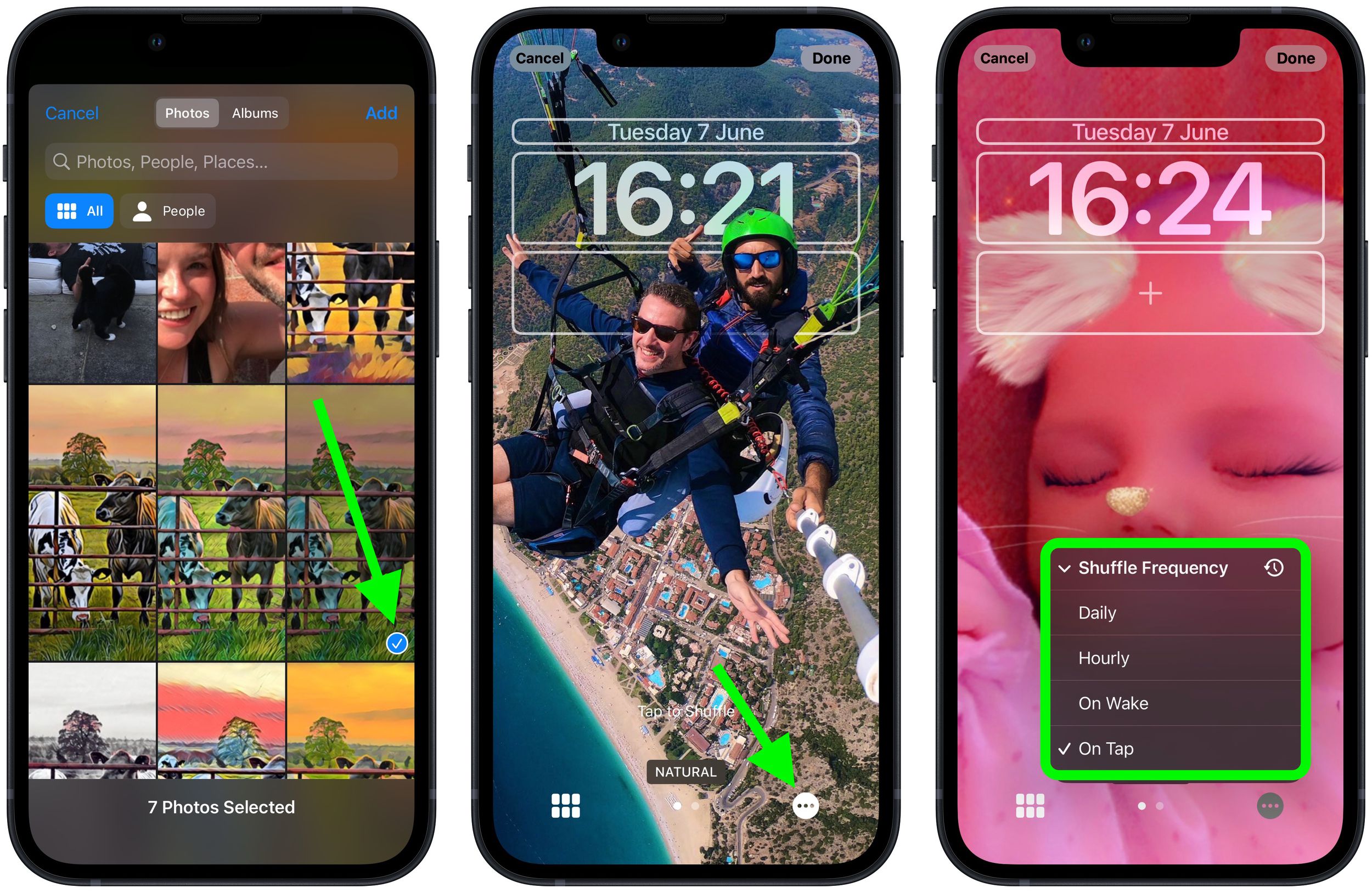
- Tap Done in the top-right corner to finish, then tap your new Photo Shuffle wallpaper to select it from the gallery.
Your new shuffle wallpaper will now be live. Tap or wake your iPhone's screen to change the photo, or wait for it to change automatically, depending on your chosen option.
Popular Stories

Crackgate? iPhone Duo Owners Report Screens Breaking Along the Hinge

Apple Music Has a Hidden iPod You Can Play With

