
How to set up Apple TV
Apple has finally updated its Apple TV into a shiny TV box you’ll actually want to own. While Apple always strives to make the setup process for its

Table of Contents






Apple has finally updated its Apple TV into a shiny TV box you’ll actually want to own.
While Apple always strives to make the setup process for its products pleasingly simple, sometimes things don’t always go right. And that’s why Vinko WEB Technologies is here to guide you through how to set up your new Apple TV.
Setting up Apple TV
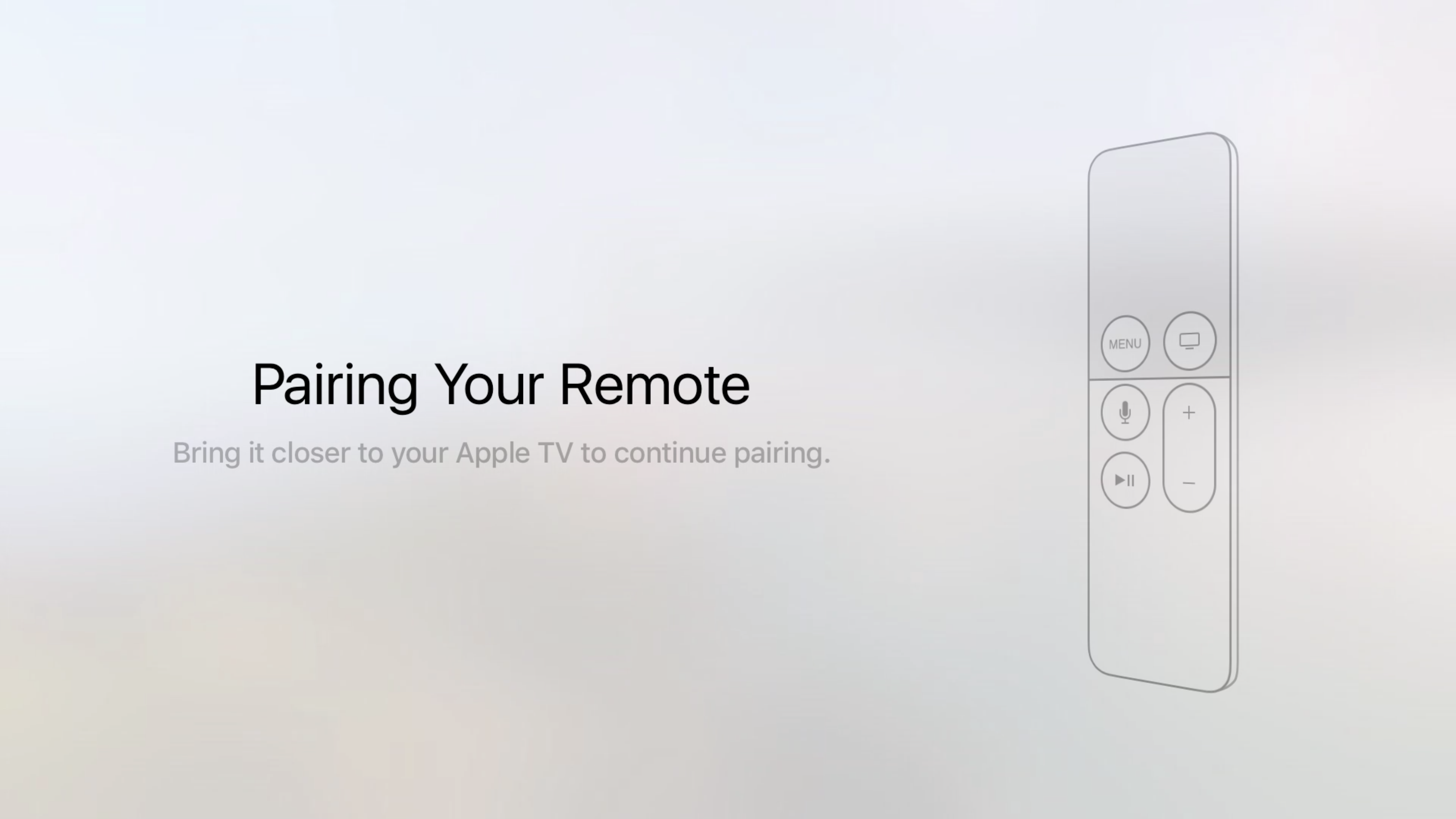
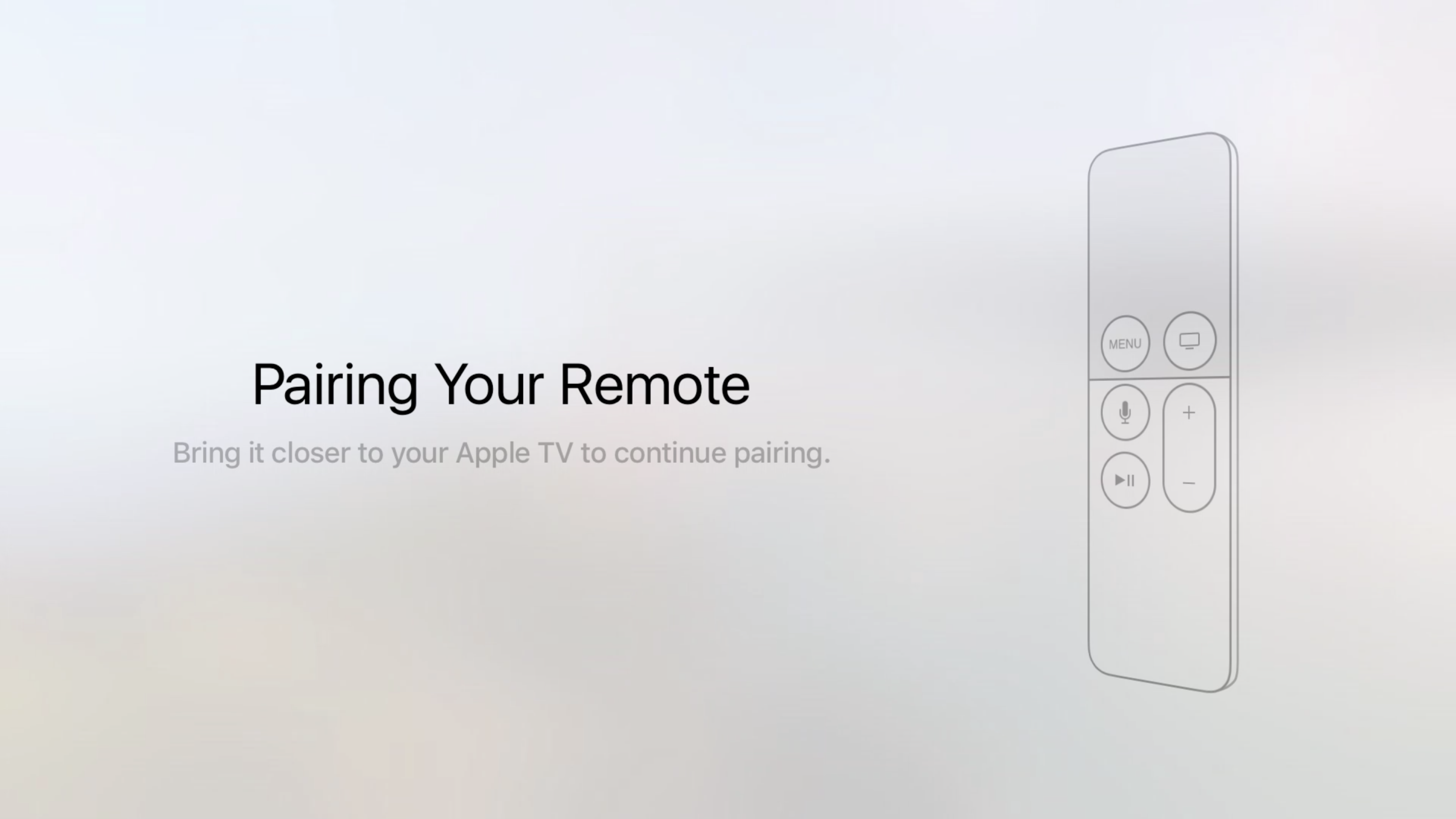
Once you’ve plugged in your Apple TV and hooked it up to your television via HDMI the first thing your Apple TV will ask you to do is to pair the remote and select your language.
To do this simply simultaneously press “Menu” and “+” on the remote to initiate its pairing. Then the Apple TV should ask you to select your language from the scrollable list.
Now that’s out of the way, you’re presented with two options for how to set up your Apple TV: “Set up with Device” or “Set up Manually”. While manually setting up your device is rather straightforward, bear in mind it does mean you have to use the Apple TV’s disastrous on-screen keyboard.
Setting up your Apple TV with an iOS device
-
Select “Set Up with Device” on the Apple TV menu.

-
Unlock your iPhone or iPad and enable Bluetooth and hold it close to your Apple TV.
-
If successful your iOS device will prompt you with a message asking if you would like to set up your Apple TV. Select “Continue”.

-
Your Apple TV will begin to connect to the same network as your device before asking you to enter your Apple ID and password on your iOS device.
-
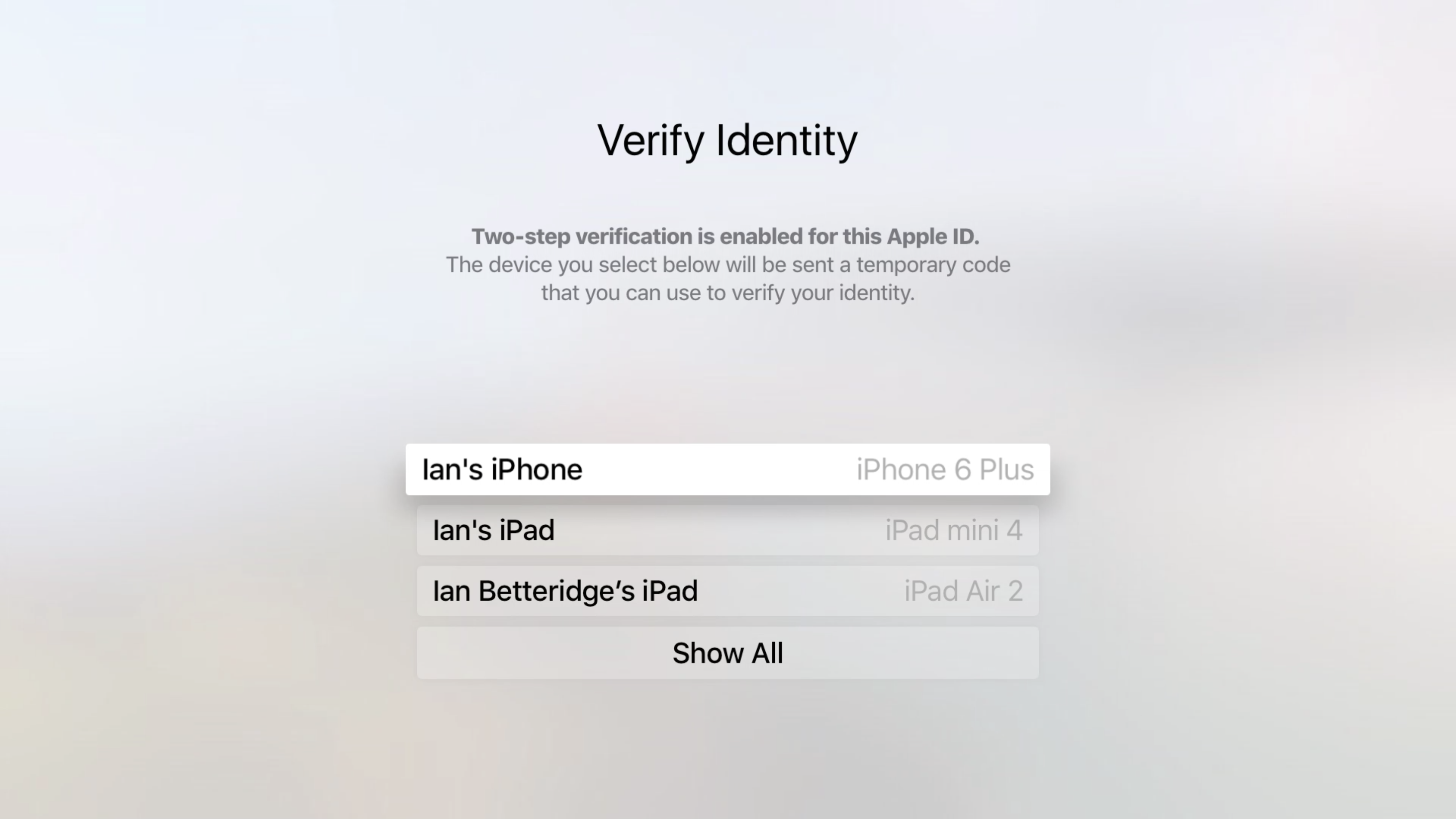
If you’ve set up two-step verification on your Apple ID account, you’ll be asked to verify your identity via an authentication code sent to one of your registered devices
-
Almost instantaneously a code should appear on your phone and you’ll be asked to enter it on the Apple TV.

-
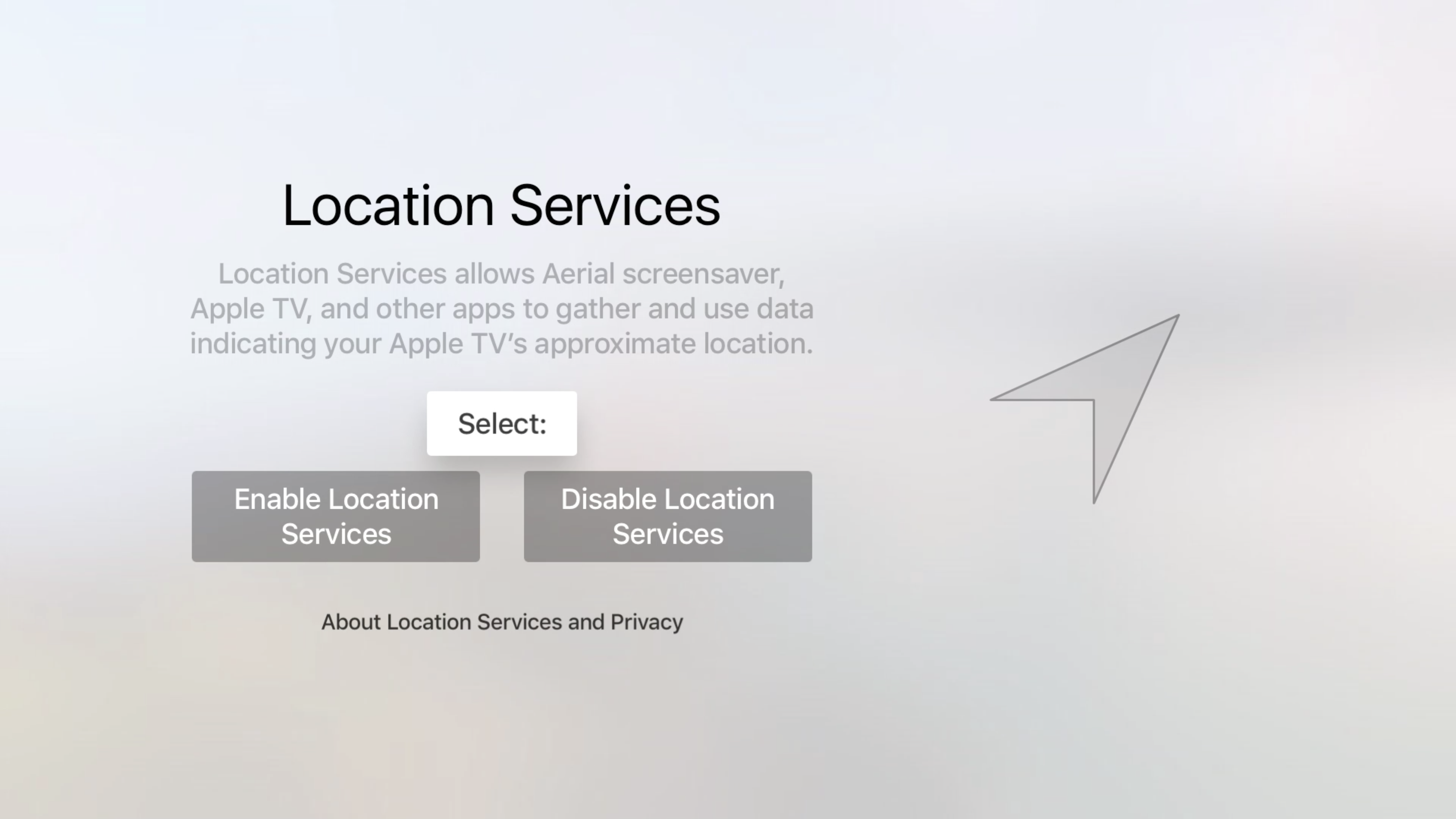
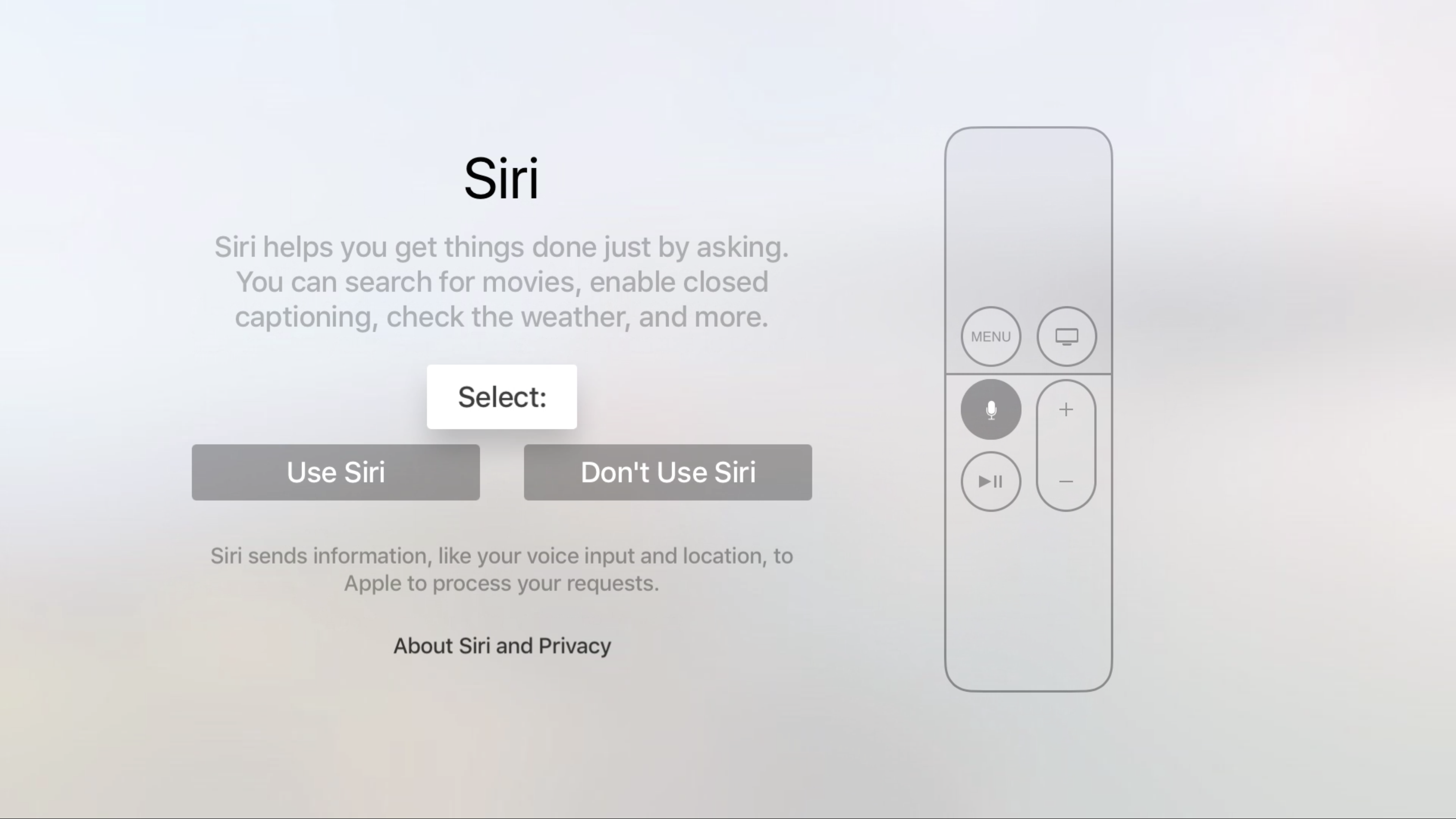
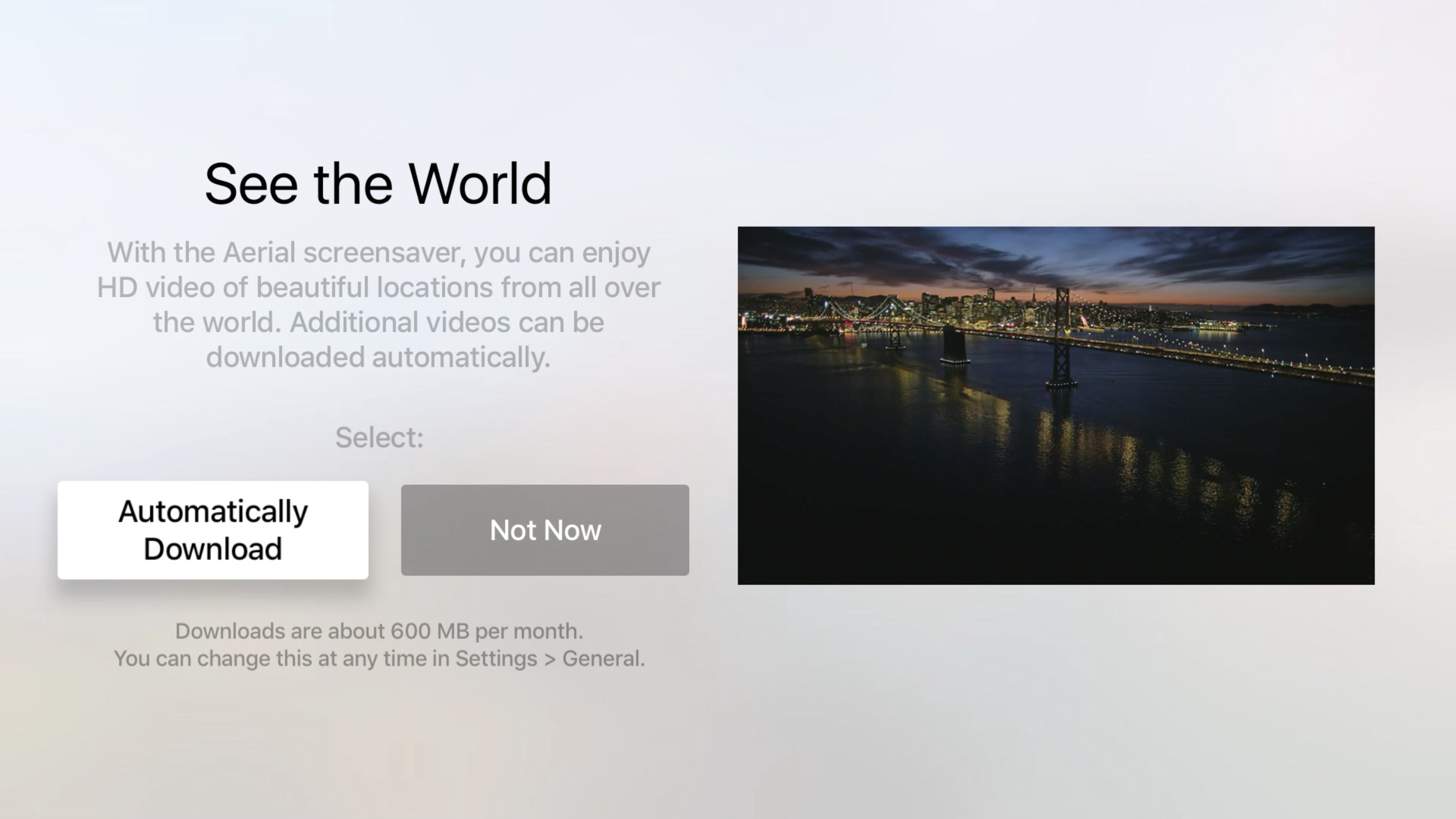
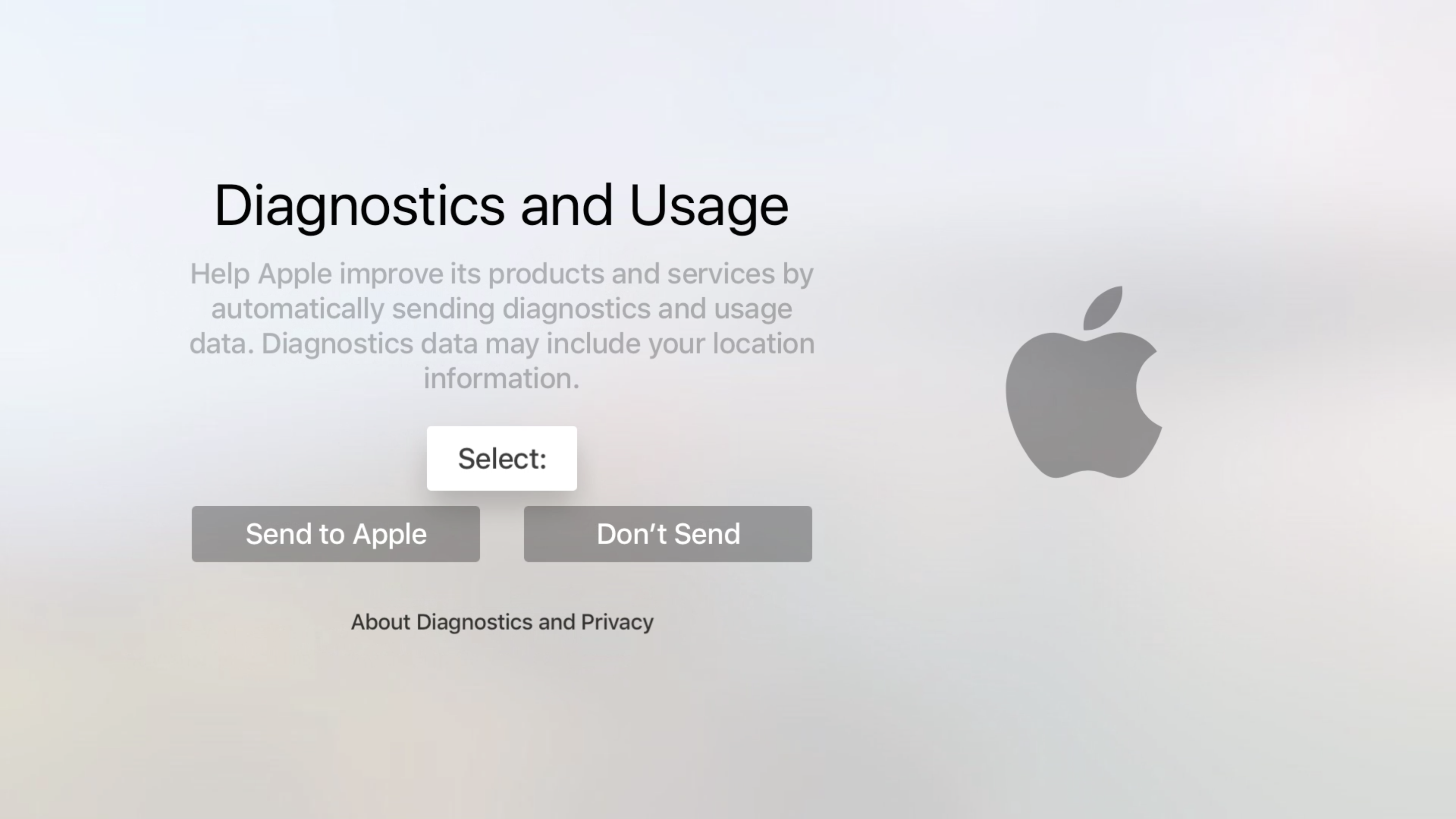
Once done just follow the on-screen prompts for various services, such as location data, Siri integration and even snazzy “See the World” live screensavers.
-
After all that you’ll be done and can finally enjoy your Apple TV!

Setting up your Apple TV manually
-
Select “Set Up Manually” on the Apple TV menu.

-
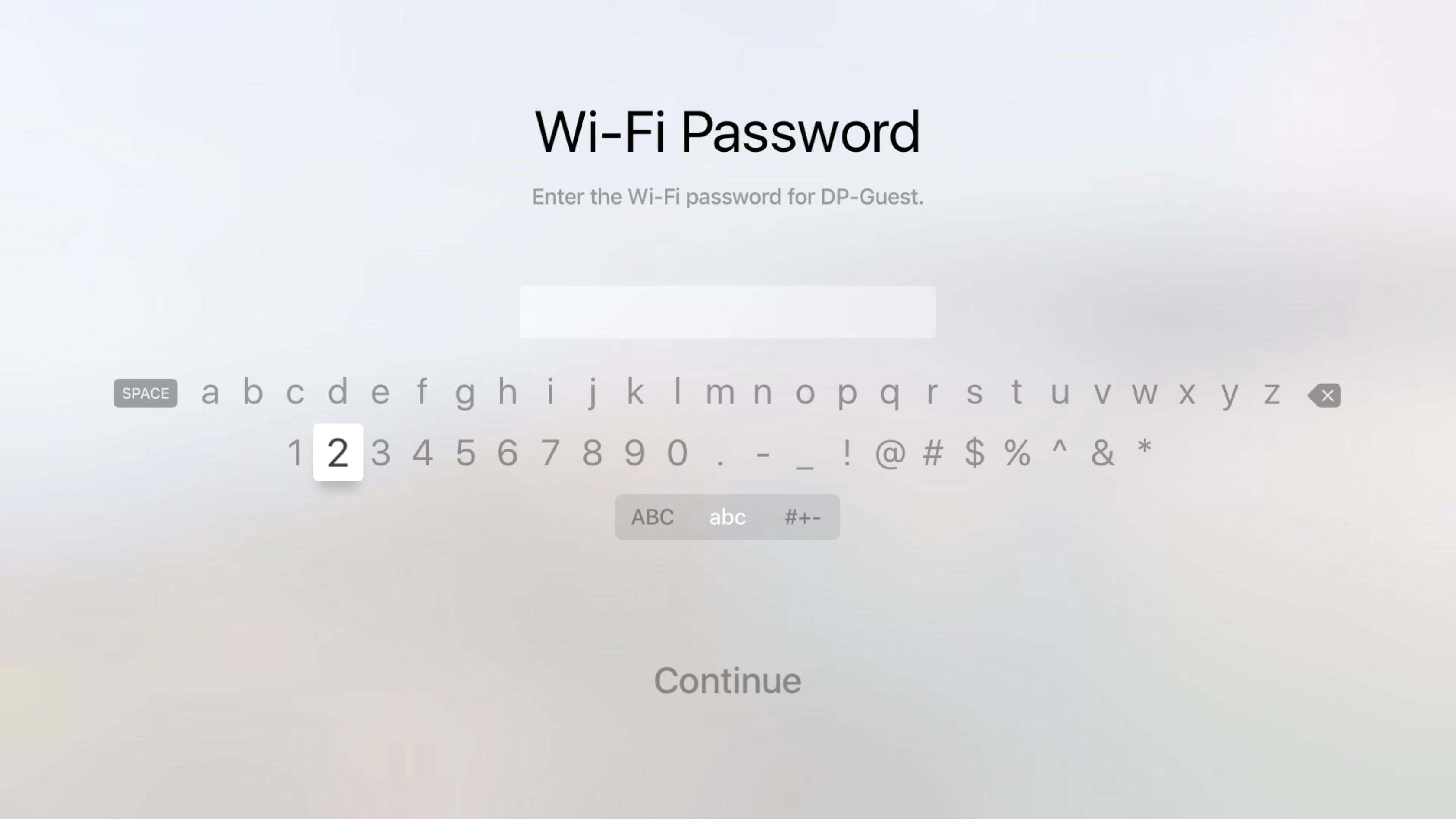
Select the Wi-Fi network you want to connect your Apple TV to and, if needed, enter its password to connect.
-
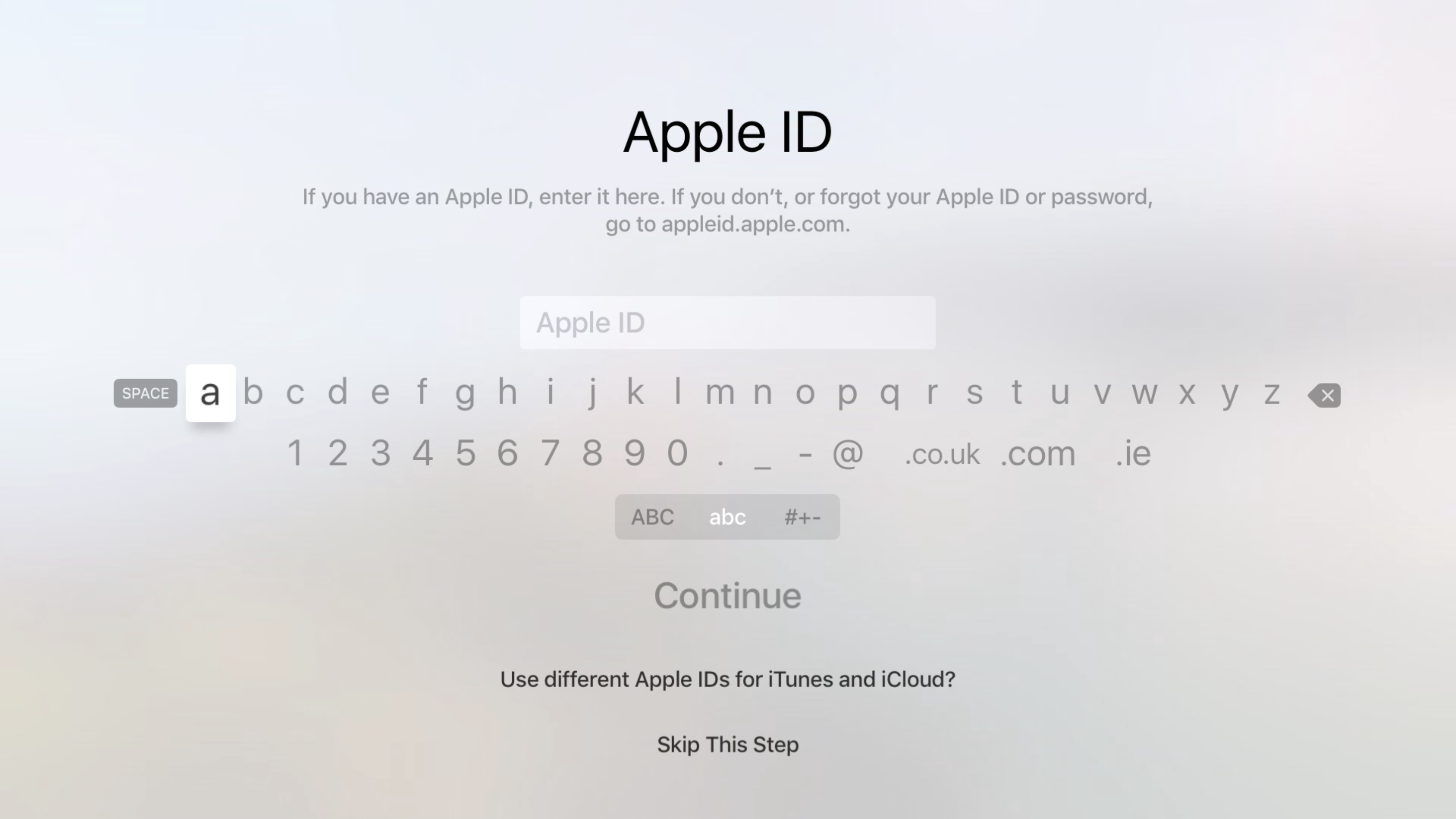
Next you’ll be prompted to enter your Apple ID and password

-
Once done just follow the on-screen prompts for various services, such as location data, Siri integration and even snazzy “See the World” live screensavers.
-
After all that you’ll be done and can finally enjoy your Apple TV!
Unsure if Apple TV is the right media hub and streamer for you? Our round up of the best TV streamers will put you right.