
How to Remove the SIM Card From an iPhone or Cellular iPad
How to Remove the SIM Card From an iPhone or Cellular iPadMonday February 3, 2020 11:54 AM PST by Tim HardwickAll iPhones and iPads with cellular have a slot on their sides that houses the Subscriber Identity Module (SIM) card pro

Table of Contents
- 1. What You'll Need
- 2. The SIM Card Slot Location on iPhone
- 3. The SIM Card Slot Location on iPads With Cellular
- 4. How to Remove the SIM Card from an iPhone or iPad
- 5. Popular Stories
- 6. Apple Responds to iPhone Duo Display Cracking Reports
- 7. Crackgate? iPhone Duo Owners Report Screens Breaking Along the Hinge
- 8. iPhone Duo Fails JerryRigEverything's Dusty Durability Test
- 9. Next Article
How to Remove the SIM Card From an iPhone or Cellular iPad
All iPhones and iPads with cellular have a slot on their sides that houses the Subscriber Identity Module (SIM) card provided by your mobile carrier. The SIM card enables your device to access the carrier's network and use voice and data services. If you plan to switch mobile network carriers or have upgraded to a new iPhone, you'll need to remove the SIM card. Keep reading to learn how.

What You'll Need
To remove the SIM card in your iPhone or iPad, you'll need the SIM eject tool that Apple includes in the device's box. If you don't have one, you can use a regular paper clip. Simply straighten the outer end of the paper clip so that it's longer and points away from the rest of the metal. The picture provides an example.

The SIM Card Slot Location on iPhone
Since the iPhone 4, Apple has generally kept the SIM card slot in the same place on the handset on successive generations. You can find it on the right side of the phone, on the side opposite the mute switch and volume buttons. On the iPhone XR, Apple moved the slot further down but it's still on the same side.
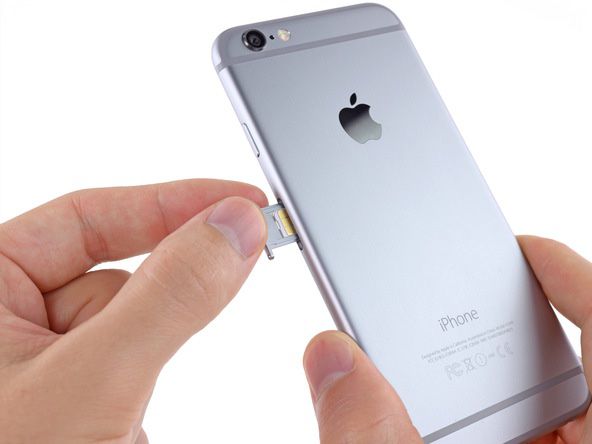
If you have an original iPhone, iPhone 3G, or iPhone 3GS, the SIM card slot is on the top of the handset in between the headphone jack and the power button.
The SIM Card Slot Location on iPads With Cellular
The SIM card slot has switched location a few times on cellular iPad generations, so checking which model you have should help you find it.
On the original iPad, it can be found towards the middle of the left side of the iPad, opposite the side where the mute switch and volume buttons are located.

On the iPad 2/3/4, it's on the left side of the iPad, near the top, opposite the side where the mute switch and volume buttons are located.
On all generations of iPad Pro, iPad Air, iPad Air 2, and iPad mini you can find the SIM slot on the bottom right side of the device, on the same side as the mute switch and volume buttons.
How to Remove the SIM Card from an iPhone or iPad
- Insert the SIM eject tool or your bent paperclip into the small pinhole opening in the SIM card slot.
- Apply light pressure until the SIM tray pops out slightly.
- Using your thumb and finger, gently pull out the SIM tray from the slot.
- Place your SIM card in the tray. If you're swapping SIM cards, remove the existing SIM from the tray and replace it with the new one. Make sure that the grooved corner of the SIM card aligns with the one in the frame of the tray to ensure correct orientation.
- Carefully re-insert the SIM tray back into the slot. It only goes in one way, so make sure you orient it correctly by lining up the pinhole.
Never force the SIM tray back in the slot, otherwise you risk damaging the internal contacts on the logic board of your iOS device. If the tray won't go back in, remove it, take out the SIM card, then re-insert the card again while taking extra care to get the orientation right. If you're having difficulty ejecting or re-inserting the SIM tray, take your device to your carrier or an Apple Store for help.
Popular Stories

Apple Responds to iPhone Duo Display Cracking Reports

Crackgate? iPhone Duo Owners Report Screens Breaking Along the Hinge

