
How to Pin and Unpin Conversations in the iOS 14 Messages App
How to Pin and Unpin Conversations in the iOS 14 Messages AppWednesday July 1, 2020 5:45 PM PDT by Tim HardwickIn iOS 14, Apple has made it easier to keep track of conversation threads in Messages by allowing users to pin threads

Table of Contents
- 1. How to Pin Conversations in Messages
- 2. Method 1
- 3. Method 2
- 4. Method 3
- 5. How to Unpin Conversations in Messages
- 6. How to Hide Alerts From Pinned Conversation
- 7. Popular Stories
- 8. iOS 27.3 May Expand RCS Support to Australia's Telstra in December
- 9. DoorDash Unveils AI Food Ordering Through Apple's Messages App
- 10. Crackgate? iPhone Duo Owners Report Screens Breaking Along the Hinge
- 11. Next Article
How to Pin and Unpin Conversations in the iOS 14 Messages App
In iOS 14, Apple has made it easier to keep track of conversation threads in Messages by allowing users to pin threads in the app.

Pinned conversations live at the top of the main messages list and appear as large contact circles. You can have a maximum of nine pinned threads.
You can pin both one-on-one conversations and group chats in Messages, and threads can include both SMS texts (green bubbles) and iMessages (blue bubbles).
One-on-one conversations appear as the other person's contact profile, while group threads have everyone's profile picture in a larger circle (unless a group photo has been chosen).
There are actually three ways that you can pin conversations in Messages. Let's take a look at them one by one.
How to Pin Conversations in Messages
Method 1
- Launch the Messages app on your iPhone or iPad.
- In your message list, long press on the conversation that you want to pin to the top.
- Tap the Pin [name] option.

Method 2
- Launch the Messages app on your iPhone or iPad.
- In your message list, swipe right across the conversation that you want to pin to the top.
- Tap the yellow Pin icon to the left of the conversation.

Method 3
- Launch the Messages app on your iPhone or iPad.
- In your message list, tap Edit in the top-left corner of the screen.
- Tap the Edit Pins option in the pop-up menu.
- Tap the yellow pin icon on the right side of the conversation that you want to pin to the top.
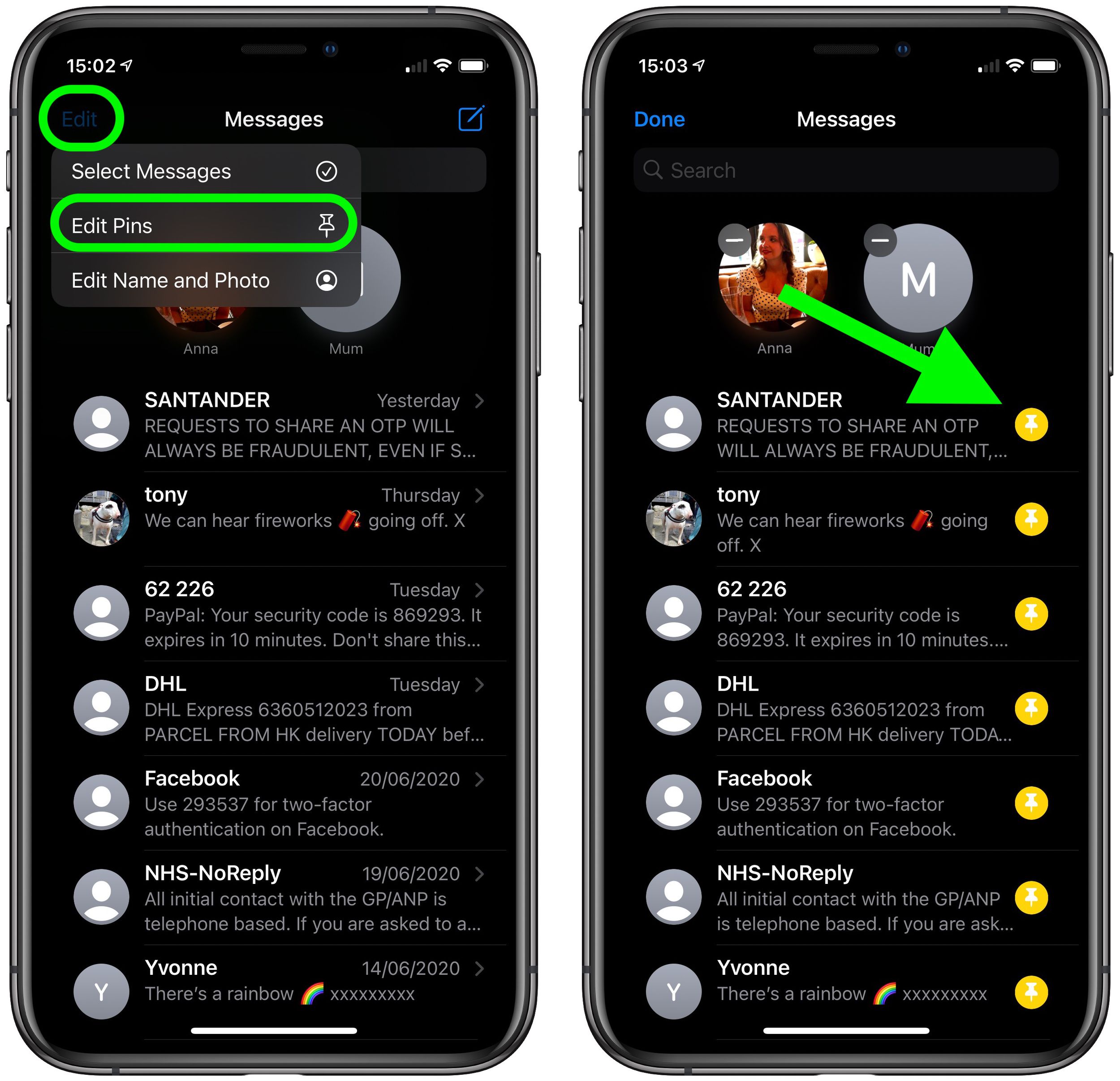
Note that when you pin a conversation to the top of the screen, it no longer appears in the messages list below. If a contact doesn't have an iMessage profile picutre, their contact circle will appear as the first letter of their name on a grey background.
If a message is being sent to you in a one-to-on conversation thread, the typing ellipsis (three dots) will appear on top of the contact circle, and a preview of the ensuing message will appear in the form of a chat bubble.
How to Unpin Conversations in Messages
To unpin a conversation from the top of your messages list, simply long press the large contact icon, then tap Unpin [name] in the pop-up menu. Alternately, tap the Edit option at the top-left of the screen, then tap the gray minus icon on the conversation that you want to unpin.
How to Hide Alerts From Pinned Conversation
To hide the alerts for a pinned conversation, simply long press on the contact circle, then select Hide Alerts in the pop-up menu.
Popular Stories

iOS 27.3 May Expand RCS Support to Australia's Telstra in December

DoorDash Unveils AI Food Ordering Through Apple's Messages App

