
How to Multitask on iPad With Slide Over
In iPadOS, Apple includes several multitasking options that let you work with more than one app on your iPad at the same time. This allows apps that support multitasking to be used in a few different ways. This article looks at Sl

Table of Contents
- 1. How to Open An App in Slide Over
- 2. How to Use the Dock to Invoke Slide Over
- 3. How to Switch Between Apps in Slide Over
- 4. How to Adjust Slide Over Apps
- 5. How to Return to Fullscreen
- 6. Popular Stories
- 7. Apple Responds to iPhone Duo Display Cracking Reports
- 8. Crackgate? iPhone Duo Owners Report Screens Breaking Along the Hinge
- 9. iPhone Duo Fails JerryRigEverything's Dusty Durability Test
In iPadOS, Apple includes several multitasking options that let you work with more than one app on your iPad at the same time. This allows apps that support multitasking to be used in a few different ways. This article looks at Slide Over. Be sure to check out our separate Split View how-to guide by clicking the link. We've also provided a link for it at the end of this article.

Recent feature additions to iPadOS make multitasking on iPad easier than ever, thanks largely to a new Multitasking menu that appears as three dots positioned centrally at the top of the screen when an app is open. Tapping the three dots reveals the following options: Fullscreen, Split View, and Slide Over.
Fullscreen is the default viewing mode with one app open. Split View, by contrast, is when two apps appear side by side on the screen, and you can resize the apps by dragging the divider that appears between them. The third option is Slide Over, in which one app appears over another in a smaller floating window that you can drag to the left or right-hand side of the screen. Let's look at how Slide Over works.
How to Open An App in Slide Over
While you’re using an app, you can switch it to a Slide Over window — a smaller window that slides in front of another app or window — and open another app behind it.
- While using an app, tap the Multitasking button (three dots) centered at the top of the screen to reveal three options.

- Tap the Slide Over button (the third option) indicated by a frame that's partially filled in on the right.
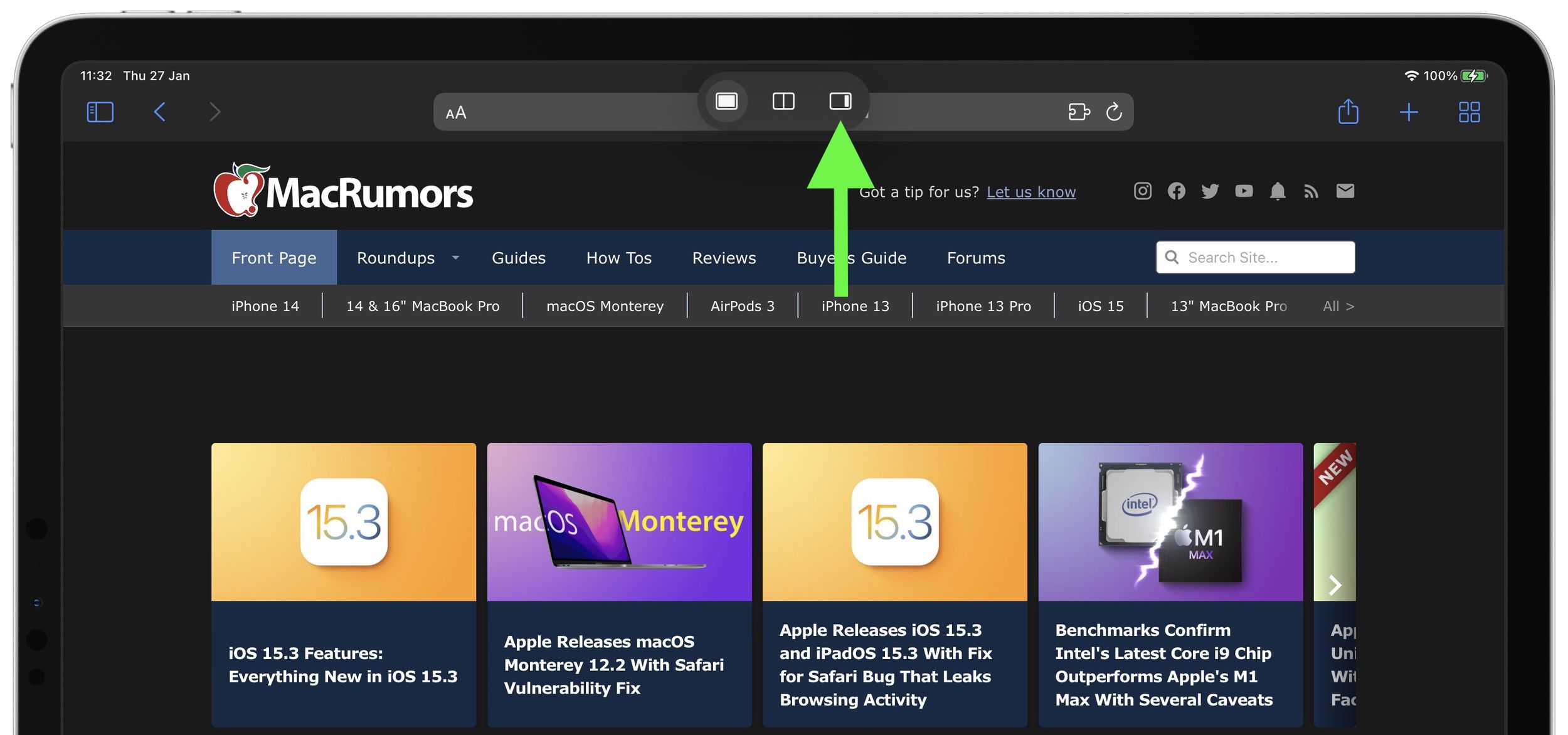
- The app you're using will move aside to reveal the Home screen and Dock. Tap another app on the Home screen or in the Dock that you want to open. The second app will open in fullscreen and the app you're already using will move to a smaller window that you can move to the right or left-hand side of your screen.

How to Use the Dock to Invoke Slide Over
- Open an app on your iPad.
- Slide one finger up from the bottom edge of the screen until the Dock appears, then release.

- Touch and hold another app in the Dock, then drag it up out of the Dock and let go of the app in the middle of the screen. The second app will appear in a Slide Over window.

How to Switch Between Apps in Slide Over
Swipe halfway up the screen from the bottom of the Slide Over window, pause, then lift your finger.
All the apps in Slide Over windows will appear on the screen, and you can swipe through them to find the one you want. Simply tap the one you want to view.
How to Adjust Slide Over Apps
To move the Slide Over app, use the Multitasking button (three dots) to drag it to the left or right over the main app.
To turn a Slide Over app into a Split View app, tap the Multitasking button (three dots), then tap the Split View button (the frame divided equally in two). Alternately, touch and hold the Multitasking button, then drag the app to the left or right edge of the screen.
To hide a Slide Over app, touch and hold the Multitasking button, then swipe the app off the screen to the left or right.
How to Return to Fullscreen
When in Slide Over, you can remove one app and expand the other to go fullscreen. There are two ways you can do this.
- Tap the Multitasking button (three dots) at the top of the app you want to use in fullscreen, then tap the filled frame button (first from left).
- Touch and hold the Multitasking button (three dots) at the top of the app you want to use in fullscreen. Keep its top edge at the top of the screen, drag it to the center of the screen until its name and icon appears, then release.
Did you know that you can drag and drop between apps using Split View and Slide Over? Read our dedicated drag-and-drop how-to article to learn more, and don't forget to check out our dedicated Slide Over multitasking guide by clicking the link.
Popular Stories

Apple Responds to iPhone Duo Display Cracking Reports

Crackgate? iPhone Duo Owners Report Screens Breaking Along the Hinge
