
How to Create and Use Memoji
In iOS 11, Apple introduced animated emoji characters called Animoji, which are designed to mimic your facial expressions. As of iOS 12, Animoji have grown to encompass Memoji, which are customizable humanoid Animoji characters th

Table of Contents
- 1. Making a Memoji
- 2. Customizing Your Memoji
- 3. Editing and Deleting Memoji
- 4. New Animoji Features in iOS 12 and later
- 5. Recording a Memoji or Animoji Video in the Messages App
- 6. Using a Memoji or Animoji as a Sticker
- 7. Animoji in the Messages Camera and in FaceTime
- 8. Animoji in the Messages Camera
- 9. Animoji in FaceTime
- 10. Memoji and Animoji Compatibility
- 11. Popular Stories
- 12. Apple Responds to iPhone Duo Display Cracking Reports
- 13. Apple Announces New iPad Mini With 8.5-Inch OLED Display, A20 Pro Chip, and More
- 14. Apple Announces New 14-Inch MacBook Pro With M6 Chip
In iOS 11, Apple introduced animated emoji characters called Animoji, which are designed to mimic your facial expressions. As of iOS 12, Animoji have grown to encompass Memoji, which are customizable humanoid Animoji characters that you can design to look just like you.
Memoji can do all of the same things that Animoji can, mimicking your facial expressions to allow for cute videos, photos, and interactions with friends and family. In iOS 12 and iOS 13, you can also use Memoji and Animoji in photos through the Messages camera and in live FaceTime chats. And in iOS 14, Apple added new Memoji customization options, including the ability to select new hair styles, headwear, or masks, and more age options.
Making a Memoji
Animoji live in the Messages app, so creating a Memoji is also done in Messages.
- Open up the Messages app.
- Choose a conversation.
- Tap on Animoji Messages app from the Messages app bar, which looks like a little monkey.
- Swipe right until you see the "+" button and tap it.

Customizing Your Memoji
Memoji start out as a blank face, and it's up to you to customize it to look like you. The Memoji interface will open up to a display that lets you choose skin tone to begin with. Tapping buttons and sliders will let you customize features and choose options like freckles or no freckles.

To move on from skin tone to other features, tap the labels at the top, cycling through Hairstyle, Head Shape, Eyes, Brows, Nose & Lips, Ears, Facial Hair, Eyewear, and Headwear.
During this entire process, your Memoji is active so you can see what all of the features look like when animated. Sometimes it will pause when changing a feature, but you can resume the animation by tapping on the Memoji.

There are dozens of facial feature options and accessories to choose from when creating a Memoji, allowing for many different looks.
When your Memoji is all finished, just tap "Done" in the upper right hand corner.

You can save as many Memoji as you want, so you can make Memoji for yourself, your friends, family, celebrities, characters, and more.

Editing and Deleting Memoji
You can edit an already-created Memoji or delete a Memoji at any time.
- Open up the Messages app.
- Choose a conversation.
- Tap on the little monkey icon in the Messages app drawer to open up the Animoji Messages app.
- With a Memoji in frame, tap on the three little dots in the left hand corner.
- Choose "Edit" to make changes to your Memoji, choose "Delete" to remove it, or choose "Duplicate" to use it as a base for a new Memoji.

New Animoji Features in iOS 12 and later
In iOS 12 and later, facial recognition capabilities let your Animoji and Memoji mimic both your tongue sticking out and winks. All Animoji and Memoji have tongues, with some special touches like a glitter tongue for the unicorn, a green tongue for the alien, and an articulated tongue for the robot.

Recording a Memoji or Animoji Video in the Messages App
Recording a message, song, or facial expression in a video that can be sent to family and friends is done in the same way that it was done in iOS 11.
With the Animoji app open in Messages and an Animoji or Memoji selected, tap on the red record button to start recording a message. When finished, tap the red stop button, and then tap the blue up arrow to send.

Tapping on the arrow sends the Animoji or Memoji recording automatically to the person you're conversing with.
Using a Memoji or Animoji as a Sticker
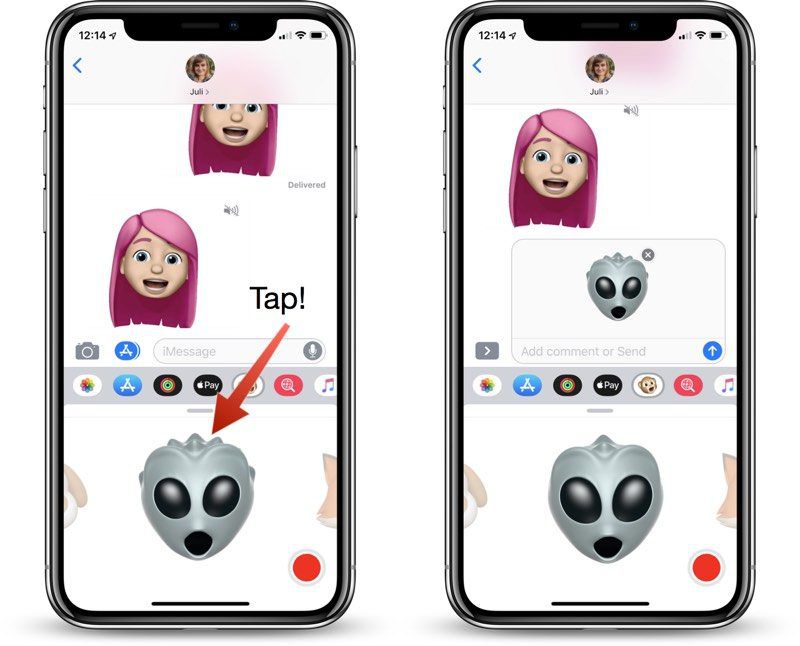
Your Memoji and Animoji can also be used as stickers if you just want to send a quick photo reaction but not a full video. To do this, make the desired face and then tap on the Animoji itself rather than the record button to create a quick little screenshot that can be sent using the blue up arrow.
If you want to use the Animoji or Memoji as a sticker to react to another message or to decorate a photo, press a finger on the Animoji and then drag it upwards into the iMessage conversation.
While the sticker is attached to your finger, you can use gestures to rotate it and resize it to get the perfect position.

Animoji in the Messages Camera and in FaceTime
iOS 12 and later include a new Effects camera in both Messages and FaceTime, which includes support for Animoji and Memoji. You can use Animoji and Memoji to create photos in Messages and to entertain friends and family while in FaceTime conversations.
Animoji in the Messages Camera
- Open the Messages app.
- Choose a conversation.
- Tap on the Camera icon that's next to the iMessage chat bar.
- Tap on the star-shaped icon in the bottom left corner.

- Select the Animoji icon, which looks like a little monkey.
- Choose an Animoji or Memoji and it will pop up over your face.

- After applying an Animoji, tap the small "X" in above the Animoji menu to exit out of the Animoji interface. Your Animoji will still be displayed, but you will also be able to add other camera effects.
- When all of your desired effects are applied, tap the photo button to snap a photo that can then be edited, marked up further, or shared.

With the Messages camera, you can add Animoji, filters, text, shapes, and stickers to your images.
Animoji in FaceTime
- Initiate a FaceTime call.
- After the call has started, tap on the star-shaped Effects icon.
- Choose an Animoji or Memoji, tap it, and it will be displayed over your face.

- As in the Messages Effects camera, tap on the "X" above the Animoji menu and you can also apply other effects while in the FaceTime call.
The person on the other end of the FaceTime call will see the Animoji and any other effects that you have applied, such as filters. You can complement your Animoji FaceTime calls with the aforementioned filters, stickers, text, and all of the other Effects camera options.
Animoji and Memoji only work with the front-facing camera in both Messages and FaceTime, because the TrueDepth camera system is required.
Memoji and Animoji Compatibility
You need a device with a TrueDepth camera system to create Memoji and Animoji, which includes the iPhone X, iPhone XS, iPhone XS Max, and iPhone 11 series. The iPhone XR and 2018 and later iPad Pro models also TrueDepth camera systems.
While it's just devices with a TrueDepth camera that can be used to create and display Animoji, others can still see them in FaceTime calls (including Group FaceTime calls) and in photos created with the Messages camera.
Popular Stories

Apple Responds to iPhone Duo Display Cracking Reports

Apple Announces New iPad Mini With 8.5-Inch OLED Display, A20 Pro Chip, and More
