
How to Change a File Type's Default App in macOS
How to Change a File Type's Default App in macOSTuesday June 19, 2018 4:03 AM PDT by Tim HardwickEach document that you have on your Mac is associated with a default application which macOS uses to open the file whenever you doubl

Table of Contents
How to Change a File Type's Default App in macOS
 Each document that you have on your Mac is associated with a default application which macOS uses to open the file whenever you double-click on its icon in Finder.
Sometimes you may have a legitimate reason for changing which app your Mac automatically launches when you open a common file type – when a newly installed app assumes control of it, or when you want to open AVI video files in VLC instead of QuickTime, for instance. The following steps show you how to do just that.
- In a Finder window, right-click (or Ctrl-click) the file whose default launch app you want to change.
- From the contextual menu, select Open With -> Other....

- A new navigation window will appear for you to select an alternative app to open the selected file. In our example, we're selecting the VLC media player app.

- Tick the checkbox next to Always Open With to ensure your selection applies in future to all files with the same extension (AVI files, in our case). If you don't see the checkbox, click the Options button at the lower left of the window and it should appear.
- Click Open.
If the app that you want to use to open the file type is greyed out, it's because macOS doesn't think there's a valid association between the two. In most cases this is correct, but you can still override it by changing the Recommended Applications view to All Applications using the Enable: dropdown menu.
There's another way you can change a file type's associated app in macOS: Right-click (or Ctrl-click) on the file in a Finder window and select Get Info.
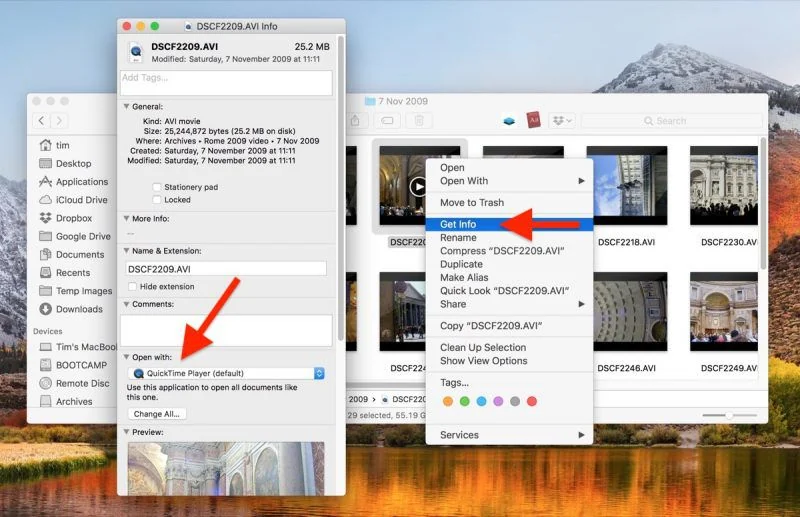
In the information dialog that appears, you should see the Open with: section immediately below the Comments: section (click the chevron buttons to expand individual sections). Select Other... in the drop-down menu of apps to select one not already in the list, and then click Change All... to apply the association to all files with the same extension.
Popular Stories

Apple Responds to iPhone Duo Display Cracking Reports

Apple Announces New iPad Mini With 8.5-Inch OLED Display, A20 Pro Chip, and More

