
Customize Widgets in Your iPhone's StandBy Mode
Customize Widgets in Your iPhone's StandBy ModeSunday March 24, 2024 2:05 AM PDT by Tim HardwickStandBy mode on iPhone is a customizable Lock Screen mode introduced in iOS 17 that activates when an iPhone is charging and positio
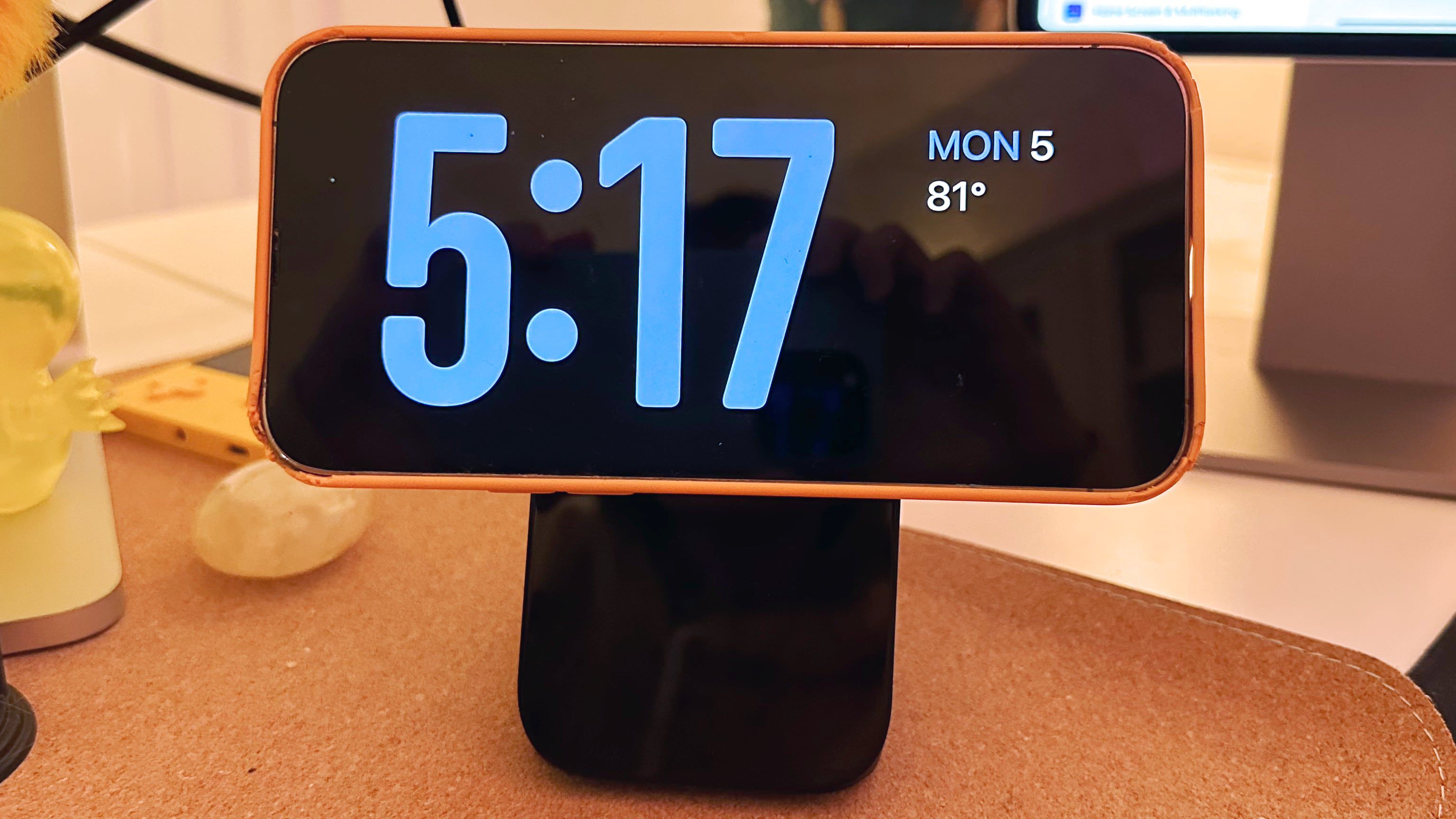
Table of Contents
Customize Widgets in Your iPhone's StandBy Mode
StandBy mode on iPhone is a customizable Lock Screen mode introduced in iOS 17 that activates when an iPhone is charging and positioned on its side. Think of it as a kind of smart display for your iPhone that offers fast access to different screens of glanceable information that can be viewed at a distance, when your device is charging on a kitchen, desk, or nightstand, for example.
Customizing StandBy Widgets
StandBy is made up of three screens that can be accessed by swiping horizontally on your iPhone's display. The first screen is where your interactive widgets live, while swiping left reveals the second and third screens which show photos from your Photos library and a large clock display, respectively.

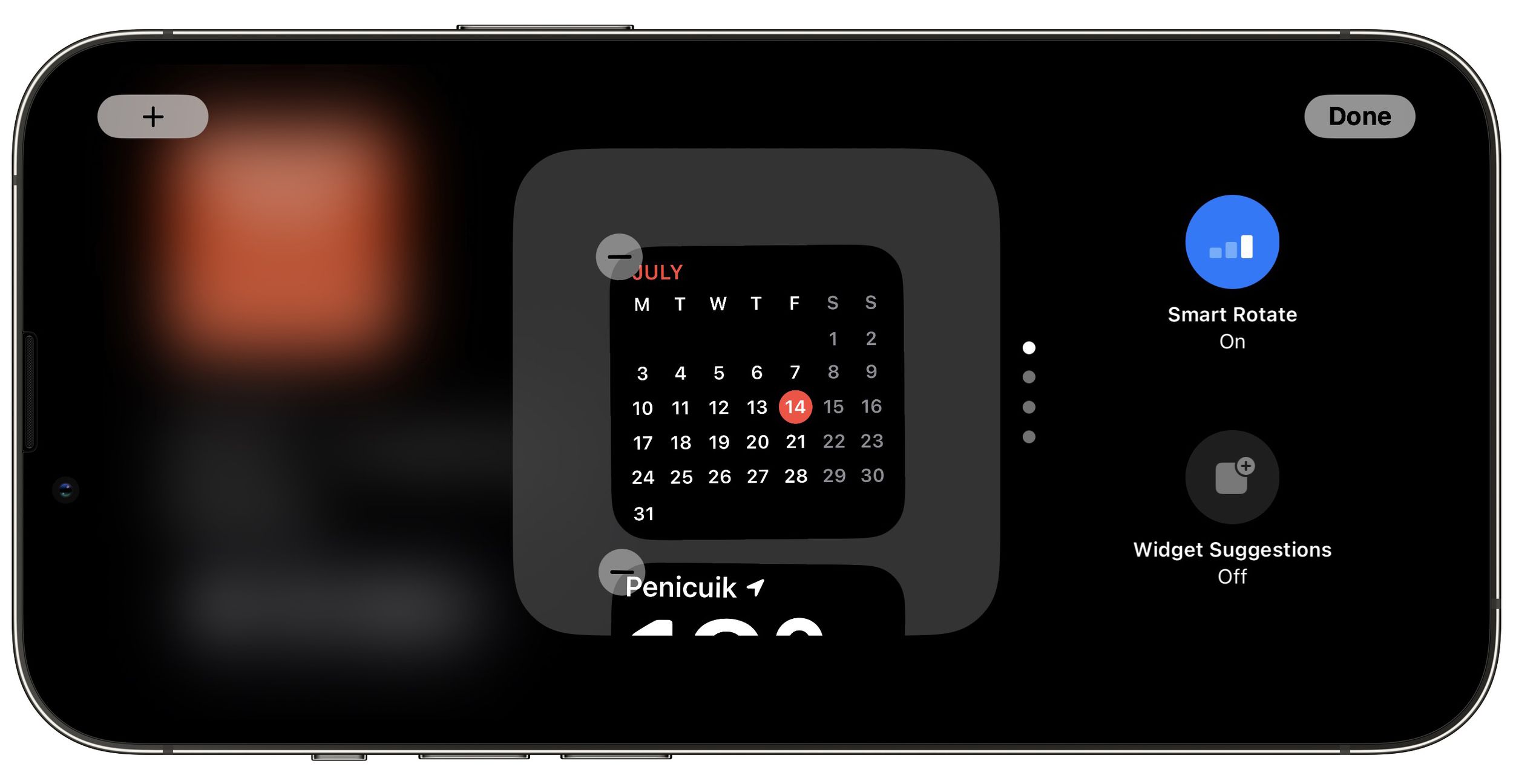
The widgets screen is comprised of two interactive widget stacks displayed side by side that you can swipe through up and down independently. The stacks are like blown-up versions of Home Screen widget stacks, and even include the same options like Smart Rotate and Widget Suggestions.
Since many widgets have interactive elements, you can, for example, tick off to-do items in a Reminders list. If you tap on a widget that isn't interactive, such as the Calendar, an arrow indicator appears on the screen. Tapping the arrow takes you to the associated app, which helps to avoid accidentally launching the app.

To customize a widget stack, long press on it. After Face ID has unlocked your iPhone, the stack will center on the screen in jiggle mode. You can add widgets to the stack using the + button in the top left, and turn Smart Rotate and Widget Suggestions on and off using the buttons on the right.
Popular Stories

Crackgate? iPhone Duo Owners Report Screens Breaking Along the Hinge

Apple Music Has a Hidden iPod You Can Play With

